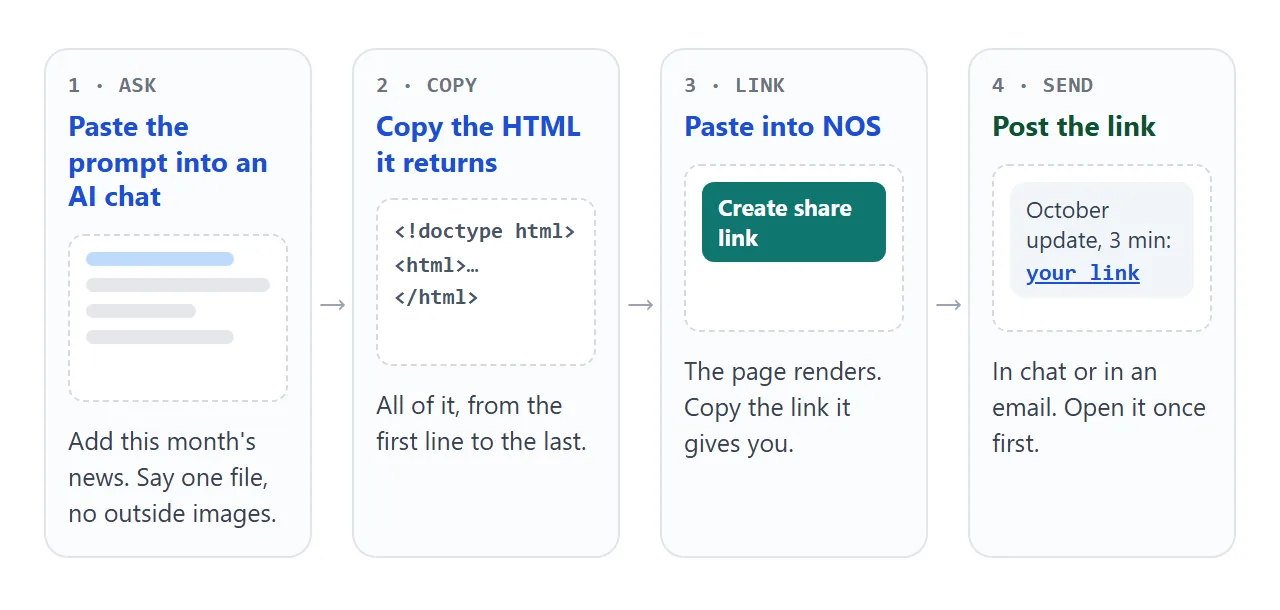
An internal newsletter template does not have to be an email. Ask an AI chat for a single HTML page, paste it into NOS, create a share link, and post that link in your team chat. Everyone opens the same current issue in a browser.
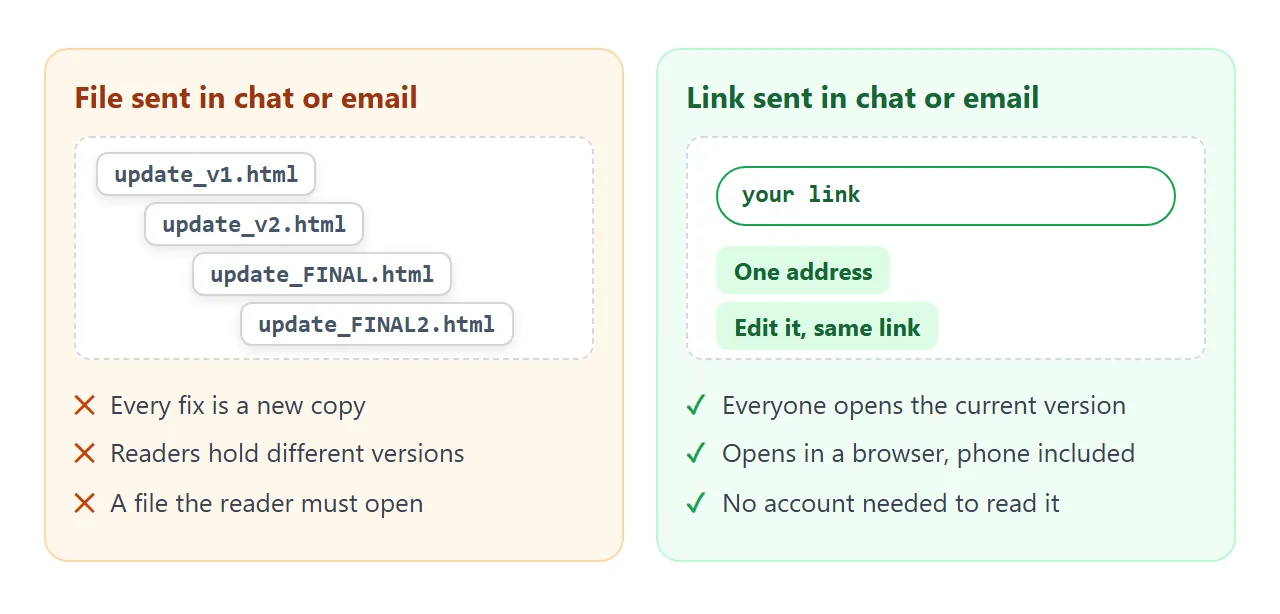
The usual trouble with sending the file itself is simple. After a few rounds of fixes there are several copies in the chat, and nobody can say which one is final. A link stays one address, and you can keep editing what it shows.
Here is a monthly update to start from. Tap the team buttons to filter it, open the how-to, and tick the list.
<!doctype html>
<html lang="en">
<head>
<meta charset="utf-8">
<meta name="viewport" content="width=device-width, initial-scale=1">
<title>Tidewater Team Update</title>
<style>
* { box-sizing: border-box; }
body { margin: 0; font-family: system-ui, -apple-system, "Segoe UI", sans-serif; background: #eef1f5; color: #1d2330; line-height: 1.5; }
.wrap { max-width: 720px; margin: 0 auto; background: #fff; }
header { padding: 22px 22px 18px; color: #fff; background: linear-gradient(135deg, #123a5e, #1f6f8b); }
header small { opacity: .8; letter-spacing: .08em; text-transform: uppercase; font-size: 12px; }
header h1 { margin: 4px 0 2px; font-size: 26px; line-height: 1.15; }
header p { margin: 0; opacity: .9; font-size: 14px; }
.chips { display: flex; flex-wrap: wrap; gap: 8px; padding: 14px 22px 4px; }
.chips button { font: inherit; font-size: 13px; padding: 5px 12px; border: 1px solid #c9d1dc; border-radius: 999px; background: #fff; color: #334155; cursor: pointer; }
.chips button[aria-pressed="true"] { background: #123a5e; border-color: #123a5e; color: #fff; }
main { padding: 6px 22px 8px; }
.item { padding: 14px 0; border-bottom: 1px solid #e6e9ef; }
.item h2 { margin: 0 0 4px; font-size: 18px; line-height: 1.25; }
.tag { display: inline-block; font-size: 11px; font-weight: 700; letter-spacing: .05em; text-transform: uppercase; padding: 1px 8px; border-radius: 4px; margin-bottom: 6px; background: #e0f2f7; color: #0b5870; }
.tag.sales { background: #fdecd3; color: #8a4b05; }
.tag.people { background: #e6f4e4; color: #28691f; }
.item p { margin: 0; font-size: 15px; }
details { margin-top: 8px; font-size: 14px; }
summary { cursor: pointer; color: #1f6f8b; font-weight: 600; }
details ol { margin: 8px 0 0; padding-left: 20px; }
table { width: 100%; border-collapse: collapse; margin-top: 8px; font-size: 14px; }
th, td { text-align: left; padding: 6px 8px; border-bottom: 1px solid #e6e9ef; }
th { color: #64748b; font-weight: 600; font-size: 12px; text-transform: uppercase; letter-spacing: .04em; }
.todo { list-style: none; padding: 0; margin: 8px 0 0; font-size: 15px; }
.todo li { padding: 3px 0; }
.todo label { display: flex; gap: 8px; align-items: flex-start; cursor: pointer; }
.todo input { margin-top: 5px; }
.todo input:checked + span { color: #94a3b8; text-decoration: line-through; }
footer { padding: 14px 22px 20px; font-size: 13px; color: #64748b; background: #f7f8fa; }
[hidden] { display: none !important; }
</style>
</head>
<body>
<div class="wrap">
<header>
<small>October issue · 3 min read</small>
<h1>Tidewater Team Update</h1>
<p>What changed, what is coming, and what we need from you.</p>
</header>
<div class="chips" role="group" aria-label="Filter by team">
<button type="button" data-team="all" aria-pressed="true">All</button>
<button type="button" data-team="ops" aria-pressed="false">Operations</button>
<button type="button" data-team="sales" aria-pressed="false">Sales</button>
<button type="button" data-team="people" aria-pressed="false">People</button>
</div>
<main>
<section class="item" data-team="ops">
<span class="tag">Operations</span>
<h2>The new booking system goes live on 14 October</h2>
<p>Old bookings move across automatically. From that morning, new ones are entered in the new system only.</p>
<details>
<summary>How to log your first booking</summary>
<ol>
<li>Sign in with your usual work login.</li>
<li>Choose <b>New booking</b> and pick the client.</li>
<li>Check the date, then press <b>Confirm</b>.</li>
</ol>
</details>
</section>
<section class="item" data-team="sales">
<span class="tag sales">Sales</span>
<h2>September closed above target</h2>
<p>Thank you to the whole regional team. The October target sheet is in the shared folder.</p>
</section>
<section class="item" data-team="people">
<span class="tag people">People</span>
<h2>Two new teammates</h2>
<p>Mirela Voss joins Sales and Tomas Aldea joins Operations. Say hello at Tuesday's stand-up.</p>
</section>
<section class="item" data-team="all">
<h2>Dates to keep</h2>
<table>
<tr><th>Date</th><th>What</th></tr>
<tr><td>14 Oct</td><td>New booking system live</td></tr>
<tr><td>21 Oct</td><td>All-hands, 10:00</td></tr>
<tr><td>31 Oct</td><td>Expense claims due</td></tr>
</table>
</section>
<section class="item" data-team="all">
<h2>Before 14 October</h2>
<ul class="todo">
<li><label><input type="checkbox"><span>Finish the 10-minute training video</span></label></li>
<li><label><input type="checkbox"><span>Check your open bookings</span></label></li>
<li><label><input type="checkbox"><span>Save the help-desk contact</span></label></li>
</ul>
</section>
</main>
<footer>Questions or news for next month? Reply in the team chat or write to the editor.</footer>
</div>
<script>
const chips = document.querySelectorAll('.chips button');
const items = document.querySelectorAll('main .item');
chips.forEach((chip) => {
chip.addEventListener('click', () => {
const team = chip.dataset.team;
chips.forEach((c) => c.setAttribute('aria-pressed', String(c === chip)));
items.forEach((item) => {
// "all" items always stay visible
item.hidden = !(team === 'all' || item.dataset.team === 'all' || item.dataset.team === team);
});
});
});
</script>
</body>
</html>
What goes in the template
Five blocks cover most internal issues. Each one has a different job, so you can drop any that you have nothing for this month.
- Header: the issue name, the month and the reading time.
- Top story: the one change people must know about.
- Team items: short news, tagged by team so readers can skip what is not theirs.
- Dates: a small table of what happens when.
- Action list: what you need from readers, as tick boxes.
For a weekly rhythm, a shorter format works better. The Friday digest below trades the long scroll for two tabs, and counts the replies a reader still owes.
<!doctype html>
<html lang="en">
<head>
<meta charset="utf-8">
<meta name="viewport" content="width=device-width, initial-scale=1">
<title>Friday Digest</title>
<style>
* { box-sizing: border-box; }
body { margin: 0; padding: 16px; font-family: system-ui, -apple-system, "Segoe UI", sans-serif; background: #f4efe6; color: #2b2620; line-height: 1.5; }
.card { max-width: 560px; margin: 0 auto; background: #fffdf8; border: 1px solid #e4dccb; border-radius: 14px; overflow: hidden; }
.top { padding: 18px 20px 14px; border-bottom: 3px solid #c2410c; }
.top small { color: #9a3412; font-weight: 700; letter-spacing: .08em; text-transform: uppercase; font-size: 12px; }
.top h1 { margin: 2px 0 0; font-size: 24px; line-height: 1.2; }
.tabs { display: flex; border-bottom: 1px solid #e4dccb; }
.tabs button { flex: 1; font: inherit; font-size: 14px; font-weight: 600; padding: 10px; border: 0; background: transparent; color: #6b6255; cursor: pointer; border-bottom: 3px solid transparent; margin-bottom: -1px; }
.tabs button[aria-selected="true"] { color: #9a3412; border-bottom-color: #c2410c; }
.panel { padding: 14px 20px 18px; }
.panel h2 { margin: 14px 0 6px; font-size: 13px; text-transform: uppercase; letter-spacing: .06em; color: #7c6f5c; }
.panel h2:first-child { margin-top: 0; }
.panel ul { margin: 0; padding-left: 20px; font-size: 15px; }
.panel li { margin: 3px 0; }
.reply { list-style: none; padding: 0 !important; }
.reply label { display: flex; gap: 8px; cursor: pointer; }
.reply input { margin-top: 5px; }
.reply input:checked + span { color: #9b917f; text-decoration: line-through; }
.count { font-size: 13px; color: #6b6255; margin-top: 8px; }
.days { display: grid; grid-template-columns: 64px 1fr; gap: 6px 12px; font-size: 15px; }
.days b { color: #9a3412; }
[hidden] { display: none !important; }
</style>
</head>
<body>
<div class="card">
<div class="top">
<small>Week 40 · 2 min read</small>
<h1>Friday Digest</h1>
</div>
<div class="tabs" role="tablist">
<button type="button" role="tab" id="t1" aria-selected="true" aria-controls="p1">This week</button>
<button type="button" role="tab" id="t2" aria-selected="false" aria-controls="p2">Coming up</button>
</div>
<div class="panel" id="p1" role="tabpanel" aria-labelledby="t1">
<h2>Done</h2>
<ul>
<li>Supplier contract renewed for another year</li>
<li>Office move boxes labelled by floor</li>
</ul>
<h2>Shout-outs</h2>
<ul>
<li>Imogen R. for covering the front desk all week</li>
</ul>
<h2>Needs your reply by Friday</h2>
<ul class="reply" id="reply">
<li><label><input type="checkbox"><span>Pick your all-hands lunch option</span></label></li>
<li><label><input type="checkbox"><span>Confirm your desk for the new floor</span></label></li>
<li><label><input type="checkbox"><span>Send holiday dates to your manager</span></label></li>
</ul>
<div class="count" id="count">0 of 3 done</div>
</div>
<div class="panel" id="p2" role="tabpanel" aria-labelledby="t2" hidden>
<h2>Next week</h2>
<div class="days">
<b>Mon</b><span>Fire drill, 11:00</span>
<b>Wed</b><span>Floor move begins</span>
<b>Thu</b><span>All-hands lunch</span>
<b>Fri</b><span>Next digest</span>
</div>
</div>
</div>
<script>
const tabs = document.querySelectorAll('.tabs button');
tabs.forEach((tab) => {
tab.addEventListener('click', () => {
tabs.forEach((t) => {
const on = t === tab;
t.setAttribute('aria-selected', String(on));
document.getElementById(t.getAttribute('aria-controls')).hidden = !on;
});
});
});
const boxes = document.querySelectorAll('#reply input');
const count = document.getElementById('count');
boxes.forEach((box) => box.addEventListener('change', () => {
const done = [...boxes].filter((b) => b.checked).length;
count.textContent = done + ' of ' + boxes.length + ' done';
}));
</script>
</body>
</html>
Make it with AI
Paste this into ChatGPT, Claude or Gemini. Replace the square brackets with your own details, and add your news below it.
Write one self-contained HTML page for an internal team newsletter.
Company: [name]. Issue: [month]. Reading time: about 3 minutes.
Sections: header, top story, team items tagged Operations / Sales / People
(with filter buttons), a small table of dates, and a tick-box action list.
Rules: one HTML file, CSS and JavaScript inside it, no outside images or
fonts (draw any graphics with inline SVG or CSS), readable on a phone,
plain system font, calm colours. Return only the HTML.

My news:
[paste your bullet points here]
When the page comes back, check these before you share it:
- Every date, name and number matches what you gave it. AI tools sometimes invent details.
- The page reads well in a narrow window, as it will on a phone.
- Filters, tick boxes and any collapsible sections work when you click them.
- No placeholder text such as "Lorem ipsum" is left.
If it is long, HTML from AI that is too long covers how to get it in pieces.
Send it as a link
Paste the finished HTML into NOS and choose Create share link. The page renders as written, scripts included, and the link opens for anyone who has it, without an account. They can read it but not edit it. HTML to link walks through the steps.
When you fix a typo later, change the code and the same link shows the new version. Nobody has to replace anything they already received.
On a phone, the link opens in the browser as a normal page. Opening an HTML file on a phone explains why the same file sent as an attachment often does not.
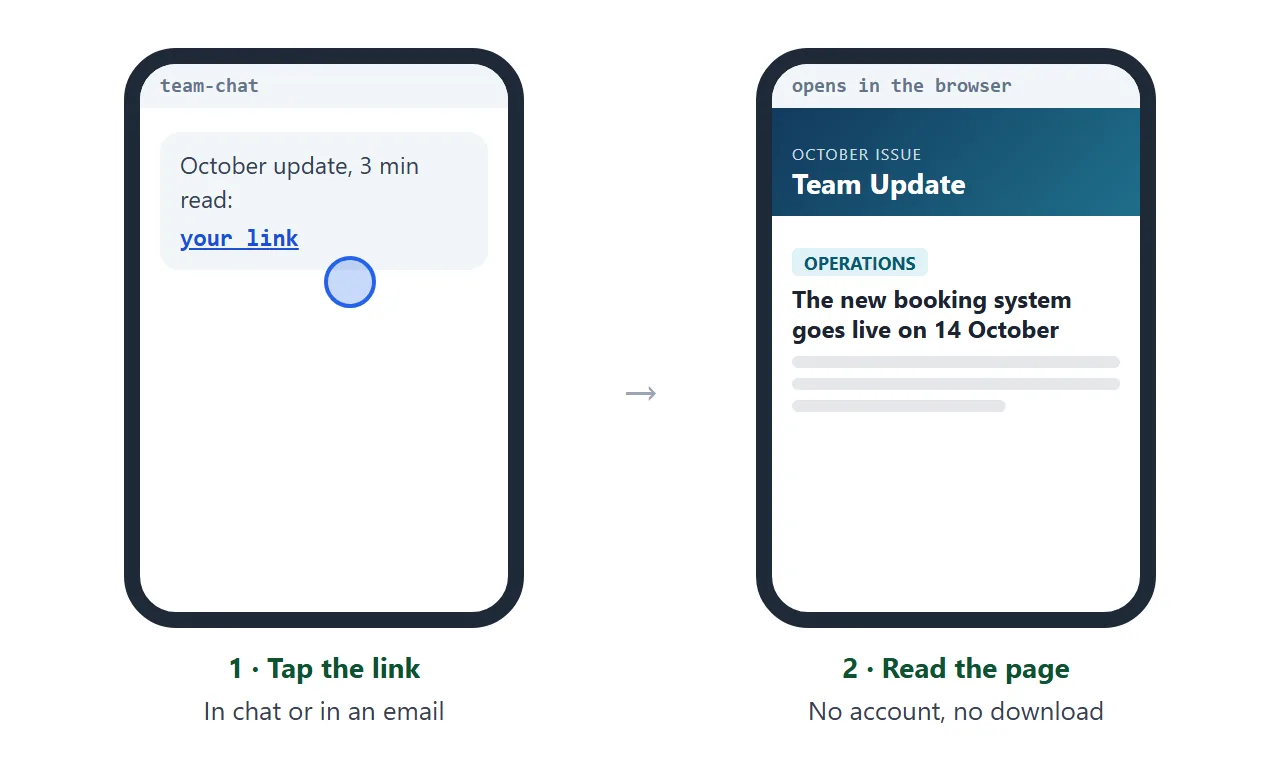
In Slack, Teams and email
In Slack, paste the URL into the message and send. As of October 2026, Slack's help page says most links expand into a preview, and each person can turn previews off. Do not rely on one appearing, and add a line saying what is inside.
Sending HTML in Slack has more on that. In Teams, copy the link, paste it into the message box and select Send, as Microsoft's help page describes. Sharing HTML in Teams has the details.
In an email, paste the link into the body with one sentence about the issue. The email stays short, and the layout lives on the page. Digital newsletter covers keeping issues findable after the send.
Attachment, link or email body
Each way of sending has a different weak spot. This is how they compare for an internal issue.
| HTML attachment | Link in chat | Full HTML in the email body | |
|---|---|---|---|
| After you fix a typo | New file, new copy | Same link | New email |
| Which version is current | Unclear | One address | Unclear |
| Where the layout lives | In the file | On the page | In the mail app |
| What the reader opens | A saved file | A web page | The email itself |
Outlook, for one, blocks automatic picture downloads by default, according to Microsoft's help page. That is one more reason to draw graphics inside the page. For email-specific layouts, read HTML email newsletter and email versus link.
Keep each issue current
Treat each issue as its own page with its own link. When you publish November, October's link still works, which makes an archive easy: ask the AI for a small index page that lists each issue with its link.
If you fix something in the page after posting, edit the code and the same link updates. Say so in the chat once, so people know a re-open shows the corrected version.
If you tick items or add rows in the shared page yourself in View mode, those changes are saved. A visitor's ticks are not, so keep any list that must be tracked somewhere readers can write to.
When it does not work
| What you see | Cause | Fix |
|---|---|---|
| Pictures are missing from the page | The AI used images from another website, which NOS blocks | Ask for inline SVG or CSS graphics instead |
| No preview card appears in chat | The chat tool may not show one for every link | Write a line beside the link saying what it is |
| The page looks cramped on a phone | The layout has fixed widths | Ask the AI for a layout that fits a narrow screen |
| A form does not send anywhere | Sending a form to a server is blocked | Use a form in your chat or survey tool and link to it |
| Readers see the old version | They kept an old tab or message open | Ask them to reload the page |
| Dates or names are wrong | The AI invented or changed them | Compare each one with your notes before sharing |