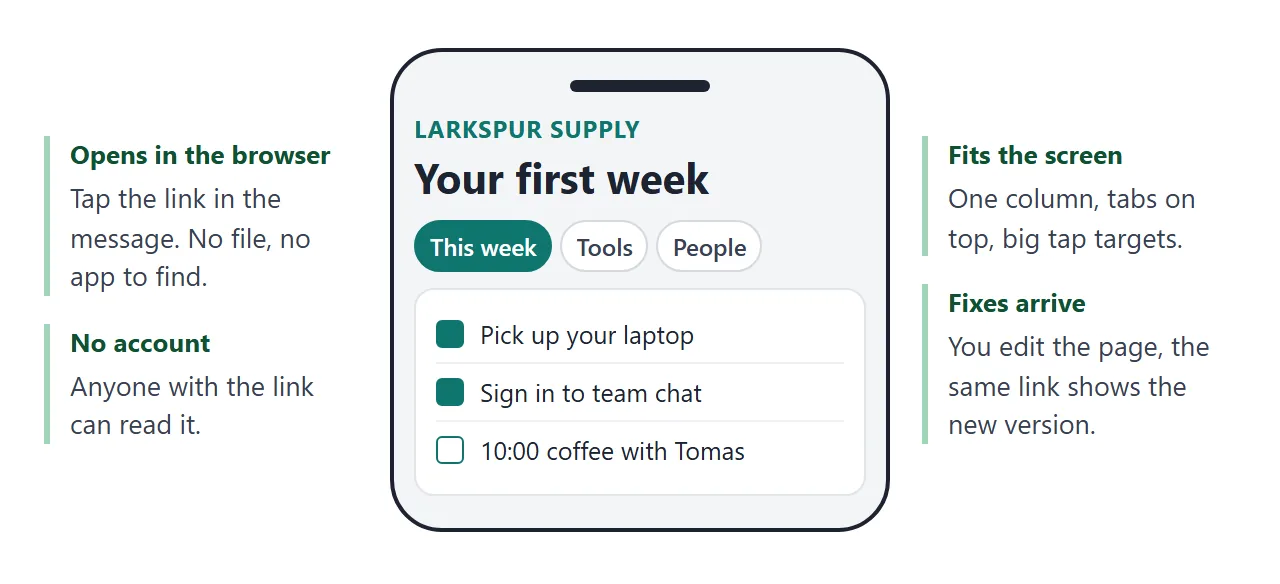
A new hire guide works best as one web page with four parts: a day-by-day plan for the first week, the tools to open, the people to ask, and the meetings that repeat.
Put its link in the welcome message, so it is the first thing the new person opens.
Try the page below. Switch between the four tabs, and tick tasks on the first one.
<!doctype html>
<html lang="en">
<head>
<meta charset="utf-8">
<meta name="viewport" content="width=device-width, initial-scale=1">
<title>Your first week at Larkspur Supply</title>
<style>
* { box-sizing: border-box; }
body { margin: 0; font-family: system-ui, sans-serif; background: #f4f5f7; color: #1d2330; }
.wrap { max-width: 640px; margin: 0 auto; padding: 18px 16px 28px; }
.eyebrow { margin: 0; font-size: 12px; font-weight: 700; letter-spacing: .4px; text-transform: uppercase; color: #0f766e; }
h1 { margin: 4px 0 6px; font-size: 26px; line-height: 1.15; }
.sub { margin: 0 0 14px; font-size: 14px; color: #4b5563; line-height: 1.45; }
.tabs { display: flex; gap: 6px; flex-wrap: wrap; margin-bottom: 12px; }
.tabs button { font: inherit; font-size: 14px; font-weight: 600; padding: 8px 12px; border: 1px solid #d5d9e0; border-radius: 999px; background: #fff; color: #374151; cursor: pointer; }
.tabs button[aria-selected="true"] { background: #0f766e; border-color: #0f766e; color: #fff; }
.panel { background: #fff; border: 1px solid #e1e4ea; border-radius: 12px; padding: 14px 14px 16px; }
.panel[hidden] { display: none; }
.days { display: flex; gap: 6px; margin-bottom: 10px; }
.days button { flex: 1; font: inherit; font-size: 13px; font-weight: 600; padding: 7px 0; border: 1px solid #d5d9e0; border-radius: 8px; background: #fafbfc; cursor: pointer; }
.days button[aria-pressed="true"] { background: #e6f4f1; border-color: #0f766e; color: #0f5d56; }
.day[hidden] { display: none; }
.day h2 { margin: 0 0 8px; font-size: 16px; }
.task { display: flex; gap: 10px; align-items: flex-start; padding: 9px 0; border-top: 1px solid #eef0f3; font-size: 15px; line-height: 1.4; cursor: pointer; }
.task input { margin-top: 3px; width: 18px; height: 18px; flex: none; accent-color: #0f766e; }
.task input:checked + span { color: #6b7280; text-decoration: line-through; }
.count { margin: 12px 0 0; font-size: 13px; font-weight: 600; color: #0f5d56; }
table { width: 100%; border-collapse: collapse; font-size: 14px; }
th, td { text-align: left; padding: 8px 6px; border-top: 1px solid #eef0f3; vertical-align: top; line-height: 1.4; }
th { font-size: 12px; text-transform: uppercase; letter-spacing: .3px; color: #6b7280; border-top: 0; }
.person { padding: 9px 0; border-top: 1px solid #eef0f3; font-size: 15px; line-height: 1.4; }
.person:first-of-type { border-top: 0; }
.person b { display: block; }
.person span { color: #4b5563; font-size: 14px; }
</style>
</head>
<body>
<div class="wrap">
<p class="eyebrow">Larkspur Supply · People team</p>
<h1>Your first week</h1>
<p class="sub">Last checked 28 Sep 2026 by Imani. If a step is wrong, tell Imani and it gets fixed on this page.</p>
<div class="tabs" role="tablist">
<button role="tab" aria-selected="true" data-tab="week">This week</button>
<button role="tab" aria-selected="false" data-tab="tools">Tools</button>
<button role="tab" aria-selected="false" data-tab="people">People</button>
<button role="tab" aria-selected="false" data-tab="routines">Routines</button>
</div>
<section class="panel" id="week">
<div class="days" id="days">
<button data-day="0" aria-pressed="true">Mon</button>
<button data-day="1" aria-pressed="false">Tue</button>
<button data-day="2" aria-pressed="false">Wed</button>
<button data-day="3" aria-pressed="false">Thu</button>
<button data-day="4" aria-pressed="false">Fri</button>
</div>
<div class="day">
<h2>Monday: get set up</h2>
<label class="task"><input type="checkbox"><span>Pick up your laptop at the front desk</span></label>
<label class="task"><input type="checkbox"><span>Sign in to team chat and the mailbox</span></label>
<label class="task"><input type="checkbox"><span>10:00 coffee with your buddy, Tomas</span></label>
</div>
<div class="day" hidden>
<h2>Tuesday: learn how we work</h2>
<label class="task"><input type="checkbox"><span>Read the team handbook page</span></label>
<label class="task"><input type="checkbox"><span>Ask Dmitri for access to the ticket board</span></label>
<label class="task"><input type="checkbox"><span>14:00 listen in on a support call</span></label>
</div>
<div class="day" hidden>
<h2>Wednesday: join the rhythm</h2>
<label class="task"><input type="checkbox"><span>Set up your timesheet</span></label>
<label class="task"><input type="checkbox"><span>11:00 weekly team meeting</span></label>
<label class="task"><input type="checkbox"><span>Write your first ticket note</span></label>
</div>
<div class="day" hidden>
<h2>Thursday: try a real task</h2>
<label class="task"><input type="checkbox"><span>Team lunch at 12:30</span></label>
<label class="task"><input type="checkbox"><span>Review one closed ticket with Tomas</span></label>
<label class="task"><input type="checkbox"><span>Tell Imani one thing on this page that was unclear</span></label>
</div>
<div class="day" hidden>
<h2>Friday: look back</h2>
<label class="task"><input type="checkbox"><span>Fill in your timesheet by 15:00</span></label>
<label class="task"><input type="checkbox"><span>16:00 short check-in with Imani</span></label>
<label class="task"><input type="checkbox"><span>Write three questions for week two</span></label>
</div>
<p class="count" id="count">0 of 15 done</p>
</section>
<section class="panel" id="tools" hidden>
<table>
<thead><tr><th>Tool</th><th>Use it for</th><th>Access from</th></tr></thead>
<tbody>
<tr><td>Team chat</td><td>Daily questions and announcements</td><td>Imani, on Monday</td></tr>
<tr><td>Mailbox</td><td>Customer mail and your calendar</td><td>Already set up on your laptop</td></tr>
<tr><td>Ticket board</td><td>Customer requests</td><td>Dmitri, on Tuesday</td></tr>
<tr><td>Timesheet</td><td>Hours, filled in once a week</td><td>Sign in with your work mail</td></tr>
</tbody>
</table>
</section>
<section class="panel" id="people" hidden>
<div class="person"><b>Imani Okafor · People team</b><span>Contract, leave, your laptop, this page</span></div>
<div class="person"><b>Tomas Reyes · Your buddy</b><span>Anything about how we do things day to day</span></div>
<div class="person"><b>Lena Park · Support lead</b><span>Which tickets matter most this week</span></div>
<div class="person"><b>Dmitri Volk · IT desk</b><span>Passwords, access and broken equipment</span></div>
</section>
<section class="panel" id="routines" hidden>
<table>
<thead><tr><th>What</th><th>When</th><th>Where</th></tr></thead>
<tbody>
<tr><td>Stand-up</td><td>Every day, 09:30, 10 min</td><td>Team chat call</td></tr>
<tr><td>Team meeting</td><td>Wednesday, 11:00</td><td>Meeting room 2</td></tr>
<tr><td>Timesheet due</td><td>Friday, 15:00</td><td>Timesheet</td></tr>
<tr><td>Friday wrap-up</td><td>Friday, 16:00</td><td>Team chat call</td></tr>
</tbody>
</table>
</section>
</div>
<script>
// Tabs: show one panel, hide the rest
const tabs = document.querySelectorAll('[data-tab]');
tabs.forEach((t) => t.addEventListener('click', () => {
tabs.forEach((x) => x.setAttribute('aria-selected', x === t ? 'true' : 'false'));
document.querySelectorAll('.panel').forEach((p) => { p.hidden = p.id !== t.dataset.tab; });
}));
// Days: show one day's tasks
const dayBtns = document.querySelectorAll('[data-day]');
const days = document.querySelectorAll('.day');
dayBtns.forEach((b) => b.addEventListener('click', () => {
dayBtns.forEach((x) => x.setAttribute('aria-pressed', x === b ? 'true' : 'false'));
days.forEach((d, i) => { d.hidden = i !== Number(b.dataset.day); });
}));
// Counter: ticks are only for the person reading, nothing is stored
const boxes = document.querySelectorAll('.task input');
const count = document.getElementById('count');
boxes.forEach((c) => c.addEventListener('change', () => {
const done = document.querySelectorAll('.task input:checked').length;
count.textContent = done + ' of ' + boxes.length + ' done';
}));
</script>
</body>
</html>
The ticks are for the person reading while the page is open. A visitor's ticks are not saved, so the page is a plan to follow, not a record for you.
One page beats four attachments because the new person has one thing to open and one link to find again in the chat. The page itself is plain HTML, so an AI chat can write it for you.
Make it with AI
Open ChatGPT, Claude or Gemini and paste the prompt below. Replace the last line with your real list. The prompt asks for TODO where something is missing, so the AI does not invent a meeting time.
Create one self-contained HTML page called "Your first week at [Company]" for a new hire. One file, inline CSS, a little JavaScript, no external images, fonts or libraries. It must work on a phone.

Four tabs:
1. This week: Monday to Friday, 3 tasks a day as checkboxes, with a counter.
2. Tools: a table with tool, what it is for, who gives access.
3. People: name, role, what to ask them.
4. Routines: recurring meetings with day, time and place.

Use only the details below. Where something is missing, write TODO. Never invent names, times or links.
Show a "Last checked" date line at the top.

Details: [paste your list here]
Then check the result before you send it:
- Search for TODO. Fill each one in or delete the line.
- Read every name, time and place. The AI may still rearrange details, so compare against your list.
- Check the date line. Set it to today.
- Open it on a phone. The tabs and tables should fit without sideways scrolling.
- Look for images and forms. Images loaded from other sites are blocked in NOS, and so is sending a form to a server. Text and inline drawings are fine.
Send it as a link
Paste the finished HTML into NOS and choose Create share link. HTML to link walks through it. The new hire gets a page that opens in a browser, on a laptop or a phone, with no account, and the page runs as written.
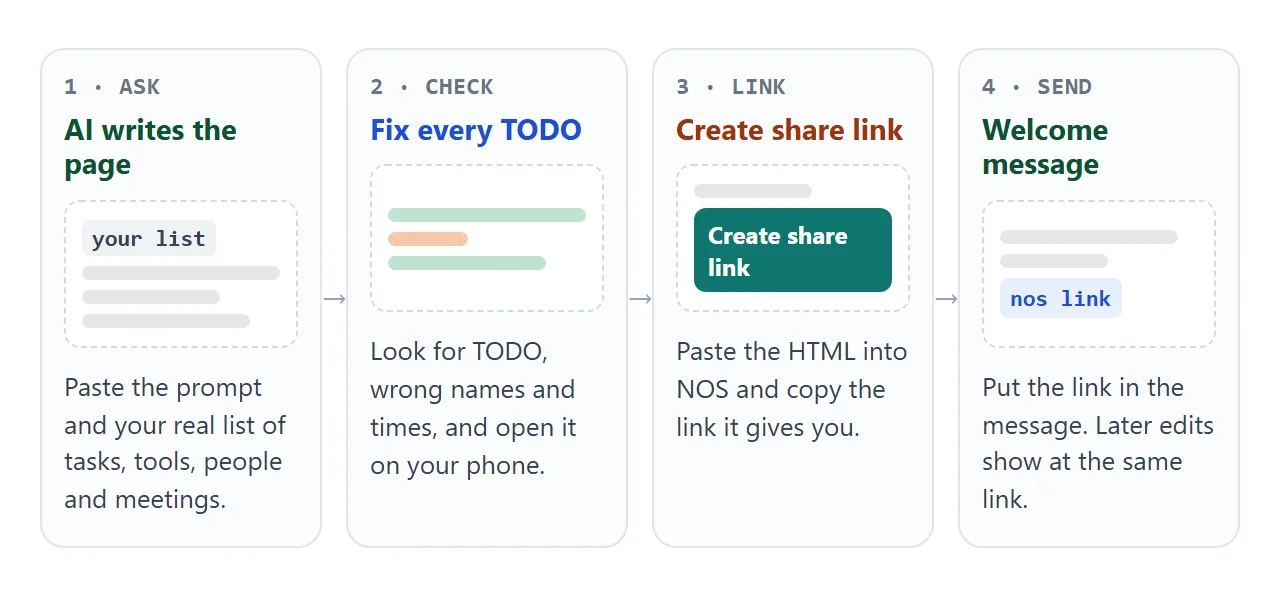
When something changes, edit the code in your NOS document. The link stays the same and shows the new version, so the welcome message you sent last week still works. Nobody has to hunt for a version two.
Where you put the link depends on where the welcome message lives. As of October 2026:
- Gmail. Write the message, highlight the words, click Insert link (or press Ctrl+K), paste the address into the bottom field and click Apply.
- Slack, pinned. Hover over the message with the link and click the three dots. On the Free plan choose Pin to channel. On Pro, Business+ and Enterprise, hover over Organize first. By default all members and guests can pin.
- Slack, channel tab. Click the plus sign at the top of the channel, choose Link, add the address and click Add. Slack lists this on all plans.
- Teams and plain email. See sharing a page in Teams and sending HTML by email.
- Printed welcome card. Put a QR code of the link on the card. QR code link covers it.
File or link: how to send the guide
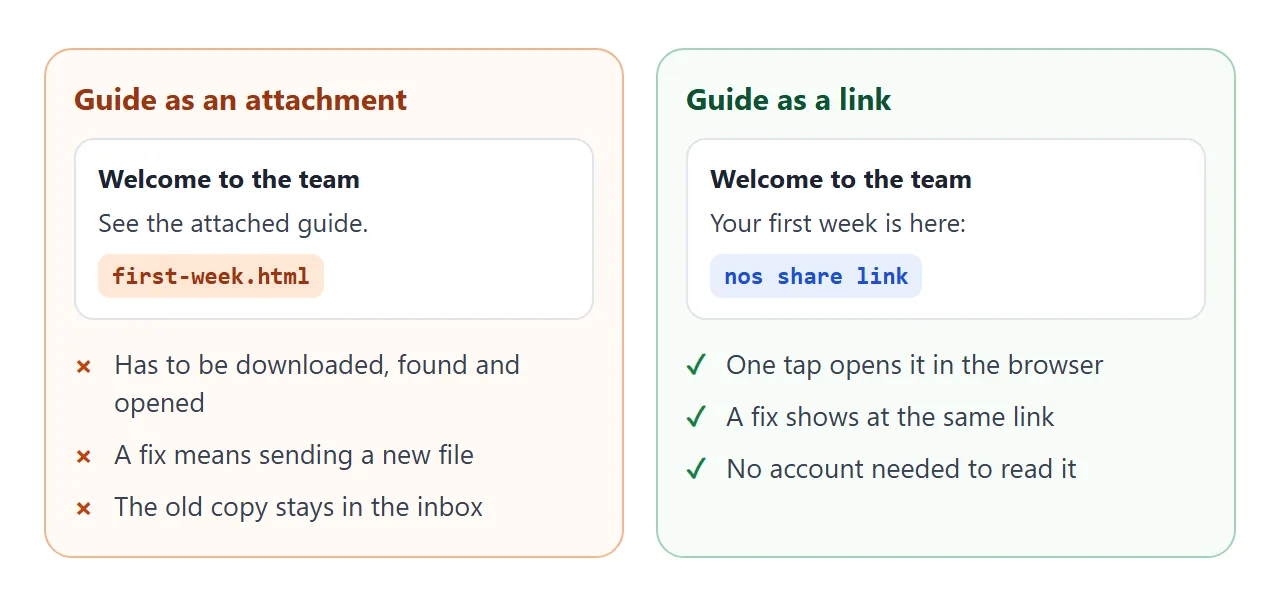
| Way | What the new hire does | Good for | Watch for |
|---|---|---|---|
| HTML file attached | Downloads it, finds it, opens it in a browser | A one-off copy for someone who asked for the file | On a phone it can stop at the file manager |
| Link in the email | Taps the link | The welcome message before day one | Paste the whole address |
| Pinned in Slack | Opens the pinned message | The team channel | Pin the message that has the link |
| Link tab in Slack | Clicks the tab | A guide people return to | Name the tab clearly |
| QR code on paper | Scans it | A desk card on day one | The card cannot be corrected |
Opening an HTML file on a phone explains where the attachment route often stops. A link avoids the problem because nothing has to be downloaded.
A second page: who to ask
The page that answers who to ask deserves its own link, so you can paste it into any chat reply. Type a word below, or tap one of the chips.
<!doctype html>
<html lang="en">
<head>
<meta charset="utf-8">
<meta name="viewport" content="width=device-width, initial-scale=1">
<title>Who do I ask? Larkspur Supply</title>
<style>
* { box-sizing: border-box; }
body { margin: 0; font-family: system-ui, sans-serif; background: #f4f5f7; color: #1d2330; }
.wrap { max-width: 640px; margin: 0 auto; padding: 18px 16px 28px; }
h1 { margin: 0 0 4px; font-size: 24px; line-height: 1.15; }
.sub { margin: 0 0 12px; font-size: 14px; color: #4b5563; }
label.s { display: block; font-size: 13px; font-weight: 700; margin-bottom: 4px; }
input[type="search"] { width: 100%; font: inherit; font-size: 16px; padding: 10px 12px; border: 1px solid #c9cfd8; border-radius: 10px; background: #fff; }
.chips { display: flex; flex-wrap: wrap; gap: 6px; margin: 8px 0 12px; }
.chips button { font: inherit; font-size: 13px; padding: 5px 10px; border: 1px solid #d5d9e0; border-radius: 999px; background: #fff; cursor: pointer; }
.list { background: #fff; border: 1px solid #e1e4ea; border-radius: 12px; }
.row { padding: 10px 14px; border-top: 1px solid #eef0f3; }
.row:first-child { border-top: 0; }
.row[hidden] { display: none; }
.row .q { margin: 0; font-size: 15px; font-weight: 600; line-height: 1.35; }
.row .a { margin: 2px 0 0; font-size: 14px; color: #0f5d56; line-height: 1.4; }
.none { margin: 10px 2px 0; font-size: 14px; color: #9a3412; }
.none[hidden] { display: none; }
h2 { margin: 22px 0 8px; font-size: 17px; }
.week { display: grid; grid-template-columns: repeat(5, 1fr); gap: 6px; }
.d { background: #fff; border: 1px solid #e1e4ea; border-radius: 10px; padding: 8px; font-size: 13px; line-height: 1.35; }
.d b { display: block; margin-bottom: 4px; font-size: 13px; color: #0f5d56; }
.d span { display: block; margin-top: 3px; }
@media (max-width: 560px) { .week { grid-template-columns: 1fr 1fr; } }
</style>
</head>
<body>
<div class="wrap">
<h1>Who do I ask?</h1>
<p class="sub">Type a few words about your problem. Last checked 28 Sep 2026.</p>
<label class="s" for="q">I need help with…</label>
<input id="q" type="search" placeholder="laptop, access, leave, tickets" autocomplete="off">
<div class="chips" id="chips">
<button type="button">laptop</button>
<button type="button">access</button>
<button type="button">leave</button>
<button type="button">tickets</button>
<button type="button">timesheet</button>
</div>
<div class="list" id="list">
<div class="row"><p class="q">My laptop will not start</p><p class="a">Dmitri, IT desk. Message in team chat.</p></div>
<div class="row"><p class="q">I need access to the ticket board</p><p class="a">Dmitri, IT desk. Say which board and why.</p></div>
<div class="row"><p class="q">Questions about my contract or leave</p><p class="a">Imani, People team.</p></div>
<div class="row"><p class="q">My timesheet will not save</p><p class="a">Imani, People team. Send a screenshot.</p></div>
<div class="row"><p class="q">Which tickets should I take first?</p><p class="a">Lena, support lead, at the 09:30 stand-up.</p></div>
<div class="row"><p class="q">I found a wrong step on this page</p><p class="a">Imani, People team. It gets fixed here.</p></div>
</div>
<p class="none" id="none" hidden>Nothing matches. Ask Tomas, your buddy, and he will point you to the right person.</p>
<h2>A normal week</h2>
<div class="week">
<div class="d"><b>Mon</b><span>09:30 stand-up</span></div>
<div class="d"><b>Tue</b><span>09:30 stand-up</span></div>
<div class="d"><b>Wed</b><span>09:30 stand-up</span><span>11:00 team meeting</span></div>
<div class="d"><b>Thu</b><span>09:30 stand-up</span></div>
<div class="d"><b>Fri</b><span>09:30 stand-up</span><span>15:00 timesheet due</span><span>16:00 wrap-up</span></div>
</div>
</div>
<script>
const input = document.getElementById('q');
const rows = document.querySelectorAll('.row');
const none = document.getElementById('none');
// Show only rows that contain every typed word
function filter() {
const words = input.value.toLowerCase().split(/\s+/).filter(Boolean);
let shown = 0;
rows.forEach((r) => {
const text = r.textContent.toLowerCase();
const ok = words.every((w) => text.includes(w));
r.hidden = !ok;
if (ok) shown++;
});
none.hidden = shown > 0;
}
input.addEventListener('input', filter);
document.querySelectorAll('#chips button').forEach((b) => b.addEventListener('click', () => {
input.value = b.textContent;
filter();
}));
</script>
</body>
</html>
The rows describe problems, not job titles, because a new person knows what is wrong and not who owns it. An onboarding page that does not go stale goes deeper on one page per task and a visible last-checked date.
Keep the page current
Dates and names change, and a welcome message cannot be edited after it is sent. A link can. Change the text in your NOS document, update the Last checked line, and every message that carries the link now points at the corrected page.
Anyone with the link can open the page, so leave out passwords, pay and anything you would not pin on a notice board. If the team keeps several onboarding pages, hosting onboarding documents shows how they fit together.
When it does not work
| What you see | Cause | Fix |
|---|---|---|
| The phone shows code or a file icon | The HTML was sent as an attachment | Send the share link instead |
| The page opens but the tabs do nothing | Part of the code was missed when pasting | Paste the whole file again, from the first line to the last |
| A logo or photo is missing | Images from other sites are blocked | Use an inline drawing, or leave it out |
| A form on the page does not send | Sending a form to a server is blocked | Say in the page where to post the question |
| TODO shows on the page | The AI left a gap, as you asked | Fill it in and paste again |
| Ticks are gone after a reload | A visitor's ticks are not saved | Treat the list as a plan, and let the new hire keep their own |
| The new hire sees old details | They are reading a screenshot or an old file | Send only the link, and say so in the message |