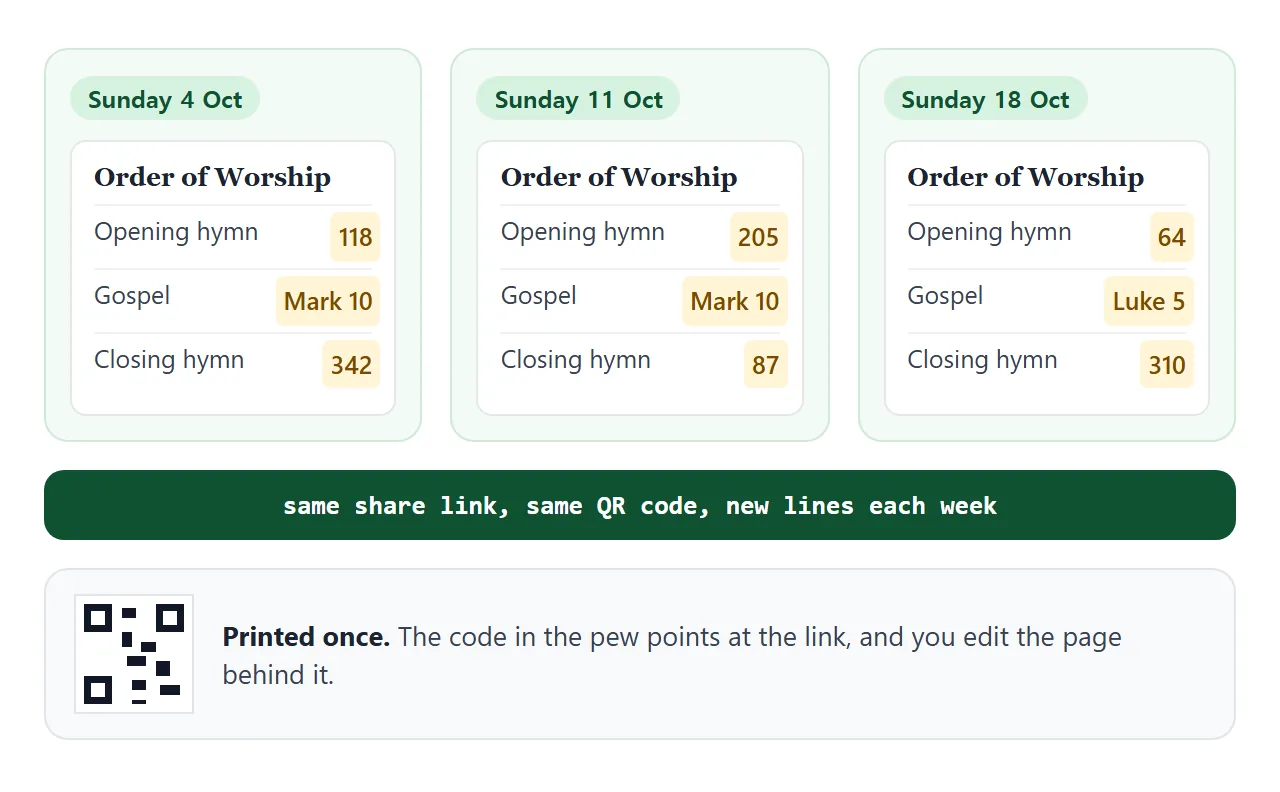
An order of worship template works best as one web page that you edit each week, not a document you rebuild. Change the hymn numbers, readings and notices, keep the same link, and the QR code in the pews opens the current Sunday.
The weekly sheet is a known chore. One Quora question asks: "What tools/apps do you use to create the Episcopal Church bulletin every week? It is a time consuming task."
A page cuts the repeat work. You lay it out once and touch only the lines that change.
Try the example. It has the usual four parts, a notices box, and A- and A+ buttons so people can enlarge the text.
<!doctype html>
<html lang="en">
<head>
<meta charset="utf-8">
<meta name="viewport" content="width=device-width, initial-scale=1">
<title>Order of worship</title>
<style>
* { box-sizing: border-box; }
body {
margin: 0; font-family: Georgia, "Times New Roman", serif;
background: #f6f1e7; color: #2b2622; line-height: 1.5;
}
.page { max-width: 560px; margin: 0 auto; padding: 22px 18px 34px; }
header { text-align: center; border-bottom: 2px solid #7a1f2b; padding-bottom: 14px; }
.place { font: 700 12px/1 system-ui, sans-serif; letter-spacing: .14em; text-transform: uppercase; color: #7a1f2b; }
h1 { margin: 8px 0 2px; font-size: 1.7em; font-weight: 700; }
.when { font: 15px system-ui, sans-serif; color: #5b524a; }
.tools { display: flex; justify-content: center; gap: 8px; margin-top: 12px; }
.tools button {
font: 600 14px system-ui, sans-serif; padding: 7px 14px; border-radius: 8px;
border: 1px solid #c9bfae; background: #fff; color: #2b2622; cursor: pointer;
}
h2 {
margin: 26px 0 6px; font: 700 12px/1 system-ui, sans-serif;
letter-spacing: .14em; text-transform: uppercase; color: #7a1f2b;
}
ol { list-style: none; margin: 0; padding: 0; }
li { padding: 9px 0; border-bottom: 1px solid #e3dac9; display: flex; justify-content: space-between; gap: 14px; }
li .what { font-weight: 700; }
li .detail { color: #5b524a; font-size: .92em; }
li .who { font: 14px system-ui, sans-serif; color: #5b524a; text-align: right; white-space: nowrap; }
.notices { margin-top: 26px; background: #fff; border: 1px solid #e3dac9; border-radius: 10px; padding: 12px 16px; }
.notices h2 { margin-top: 0; }
.notices ul { margin: 6px 0 0; padding-left: 18px; }
.notices li { display: list-item; border: 0; padding: 3px 0; }
footer { margin-top: 24px; text-align: center; font: 13px system-ui, sans-serif; color: #7b7066; }
@media (max-width: 420px) { li { flex-direction: column; gap: 2px; } li .who { text-align: left; } }
</style>
</head>
<body>
<div class="page" id="page">
<header>
<div class="place" id="place"></div>
<h1>Order of Worship</h1>
<div class="when" id="when"></div>
<div class="tools">
<button id="smaller" aria-label="Smaller text">A−</button>
<button id="larger" aria-label="Larger text">A+</button>
</div>
</header>
<main id="order"></main>
<section class="notices"><h2>This week</h2><ul id="notices"></ul></section>
<footer id="foot"></footer>
</div>
<script>
// ===== EDIT ONLY THIS BLOCK EACH WEEK =====
const week = {
place: 'Harbor Lane Chapel',
when: 'Sunday 4 October, 10:00',
notices: [
'Coffee in the hall after the service.',
'Choir practice moves to Thursday at 19:00.',
'Next Sunday: harvest lunch, sign-up sheet by the door.'
],
foot: 'Please silence phones. Large-print copies are at the back.',
sections: [
{ title: 'Gathering', items: [
{ what: 'Prelude', who: 'Organ' },
{ what: 'Welcome and notices', who: 'Leader' },
{ what: 'Opening hymn', detail: 'Hymn 118', who: 'All stand' }
]},
{ title: 'The Word', items: [
{ what: 'First reading', detail: 'Ruth 1:1-18', who: 'Reader' },
{ what: 'Psalm', detail: 'Psalm 146, said together', who: 'All' },
{ what: 'Gospel', detail: 'Mark 10:2-16', who: 'Leader' },
{ what: 'Sermon', who: 'Preacher' }
]},
{ title: 'Prayer and offering', items: [
{ what: 'Prayers of the people', who: 'Leader' },
{ what: 'Offering', detail: 'Hymn 207 during the offering', who: 'All' }
]},
{ title: 'Sending out', items: [
{ what: 'Blessing', who: 'Leader' },
{ what: 'Closing hymn', detail: 'Hymn 342', who: 'All stand' },
{ what: 'Postlude', who: 'Organ' }
]}
]
};
// ===== END OF WEEKLY BLOCK =====
const $ = (id) => document.getElementById(id);
const esc = (s) => String(s).replace(/[&<>"]/g, (c) => ({ '&': '&', '<': '<', '>': '>', '"': '"' }[c]));
$('place').textContent = week.place;
$('when').textContent = week.when;
$('foot').textContent = week.foot;
$('notices').innerHTML = week.notices.map((n) => '<li>' + esc(n) + '</li>').join('');
$('order').innerHTML = week.sections.map((s) =>
'<h2>' + esc(s.title) + '</h2><ol>' + s.items.map((i) =>
'<li><span><span class="what">' + esc(i.what) + '</span>' +
(i.detail ? '<br><span class="detail">' + esc(i.detail) + '</span>' : '') +
'</span><span class="who">' + esc(i.who || '') + '</span></li>'
).join('') + '</ol>'
).join('');
// text size: a pew is not a desk, so let people enlarge it
let size = 17;
const apply = () => { document.body.style.fontSize = size + 'px'; };
$('larger').addEventListener('click', () => { size = Math.min(26, size + 2); apply(); });
$('smaller').addEventListener('click', () => { size = Math.max(14, size - 2); apply(); });
apply();
</script>
</body>
</html>
The church is made up, and so are the hymn numbers. Replace them with your own.
Make it with AI
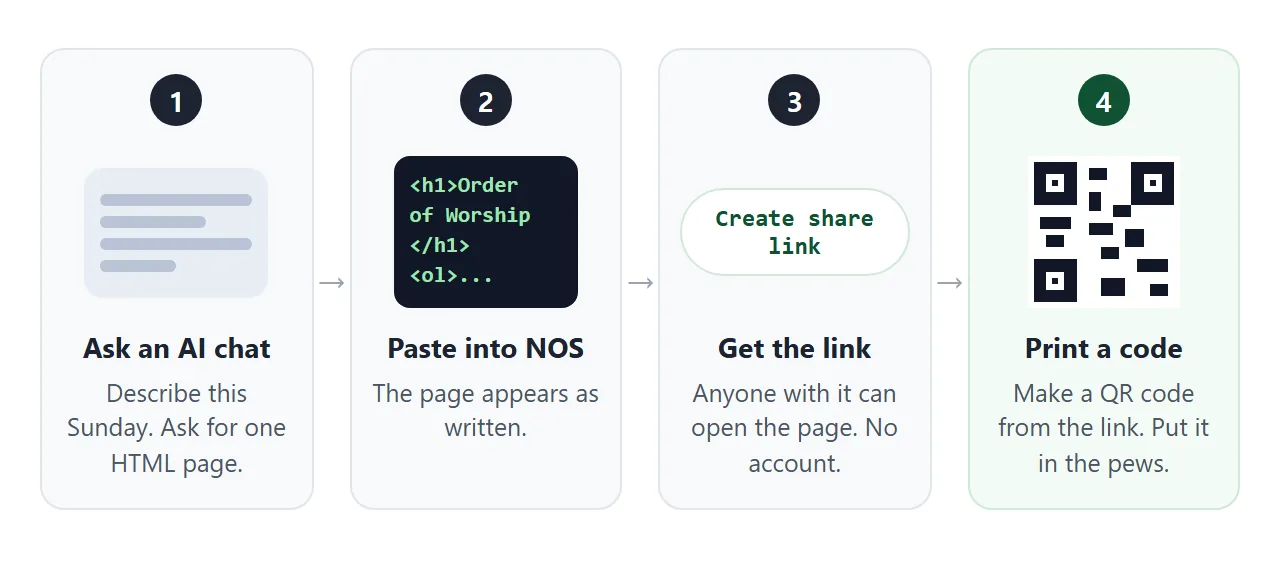
You do not have to write the page yourself. Paste this into ChatGPT, Claude or Gemini, and replace the last line with your own order for this Sunday.
Make one self-contained HTML page called "Order of Worship" for a small congregation. It must be easy to read on a phone held in a pew.

- Top: place name, service date and time.
- Four sections: Gathering, The Word, Prayer and offering, Sending out. Each line has the item, an optional detail (hymn number or reading) and who leads.
- A "This week" box with three notices.
- Serif body text, plus A- and A+ buttons that change the text size.
- Put everything that changes each week in one JavaScript object at the top of the script, marked with a comment, so I only edit that block.
- No external images and no external scripts. Include the viewport meta tag.

This Sunday: [paste your order, hymn numbers and readings here]
Then check the result before you use it:
- Every hymn number, reading and name matches your own list. An AI can fill a gap with something that looks right, so read each line.
- Nothing was added that you did not ask for, such as prayers or texts.
- The page looks right at phone width, and the A+ button makes the text larger.
- No image points to another site. Pictures should be drawn in the page itself, because outside images do not load in a NOS page.
If the page looks cramped on a phone, AI HTML mobile layout explains what to ask for.
Send it as a link
Paste the page into a NOS document and choose Create share link. HTML to link walks through it. The page opens in a browser, on a phone or a computer, for anyone with the link. They need no account, and they cannot edit it.
The page runs as written, scripts included, so the A+ button works for the person in the pew. Your own edits are what change the page.
Each week, the routine is short:
- Open the same document and find the weekly block.
- Retype the date, hymns, readings and notices.
- Look at the page once. The link does not change.
Editing the code keeps the same link. Do not create a new link each week, or the printed code will point at last week's page.
Put the QR code in the pews
Make a QR code from the share link with any QR code maker you trust, and print it on a card or in the bulletin.
QR codes you can change later covers size and contrast. HTML file to QR code covers making the code.
Print the code with words beside it that say what the person gets. The second example is a pew card with a checklist to run through before printing.
<!doctype html>
<html lang="en">
<head>
<meta charset="utf-8">
<meta name="viewport" content="width=device-width, initial-scale=1">
<title>Pew card</title>
<style>
  * { box-sizing: border-box; }
  body { margin: 0; font-family: system-ui, sans-serif; background: #eceff3; color: #1f2430; }
  .wrap { max-width: 640px; margin: 0 auto; padding: 18px 16px 26px; display: grid; gap: 16px; }
  @media (min-width: 560px) { .wrap { grid-template-columns: 250px 1fr; align-items: start; } }
  .card {
    background: #fff; border-radius: 14px; padding: 20px 18px; text-align: center;
    border: 1px solid #d5dae2; box-shadow: 0 6px 18px rgba(0,0,0,.08);
  }
  .card .place { font: 700 12px/1 system-ui; letter-spacing: .14em; text-transform: uppercase; color: #7a1f2b; }
  .card h1 { margin: 10px 0 12px; font: 700 22px/1.2 Georgia, serif; }
  .qr { background: #fff; padding: 14px; display: inline-block; border: 1px solid #e3e6ec; }
  .qr svg { display: block; width: 168px; height: 168px; }
  .note { margin: 8px 0 0; font-size: 12px; color: #9a3412; }
  .label { margin: 12px 0 2px; font-weight: 700; font-size: 17px; }
  .small { margin: 0; font-size: 13px; color: #5b6272; }
  .panel { background: #fff; border-radius: 14px; padding: 16px 18px; border: 1px solid #d5dae2; }
  .panel h2 { margin: 0 0 8px; font-size: 16px; }
  .panel label { display: flex; gap: 10px; padding: 7px 0; font-size: 15px; line-height: 1.4; cursor: pointer; }
  .panel input { margin-top: 3px; width: 18px; height: 18px; flex: none; }
  .done { display: none; margin-top: 8px; padding: 8px 10px; background: #e7f6ec; border-radius: 8px; color: #0f5132; font-size: 14px; }
  @media print { body { background: #fff; } .panel { display: none; } .card { box-shadow: none; } }
</style>
</head>
<body>
<div class="wrap">
  <div class="card">
    <div class="place">Harbor Lane Chapel</div>
    <h1>Today's order of worship</h1>
    <div class="qr"><svg id="qr" viewBox="0 0 25 25" shape-rendering="crispEdges" role="img" aria-label="Sample pattern, not a working QR code"></svg></div>
    <p class="note">Sample pattern only. Make yours from your share link.</p>
    <p class="label">Scan with your phone camera</p>
    <p class="small">Hymns, readings and notices. Large text button on the page.</p>
  </div>

  <div class="panel">
    <h2>Before you print</h2>
    <label><input type="checkbox"> The words next to the code say what the person gets</label>
    <label><input type="checkbox"> The code is dark on a plain white square, with a white margin</label>
    <label><input type="checkbox"> I scanned the printed test copy with two different phones</label>
    <label><input type="checkbox"> The page opened and showed this week's order</label>
    <label><input type="checkbox"> A few paper copies are still at the door</label>
    <div class="done" id="done">Ready to print. The same card works next Sunday.</div>
  </div>
</div>

<script>
  // Draw a decorative 25x25 pattern with the three corner squares. It is NOT a real QR code.
  const svg = document.getElementById('qr');
  const N = 25;
  let seed = 7;
  const rnd = () => (seed = (seed * 1103515245 + 12345) & 0x7fffffff) / 0x7fffffff;
  const finder = (x, y) => {
    const inBox = (ox, oy) => x >= ox && x < ox + 7 && y >= oy && y < oy + 7;
    for (const [ox, oy] of [[0, 0], [N - 7, 0], [0, N - 7]]) {
      if (inBox(ox, oy)) {
        const dx = x - ox, dy = y - oy;
        const ring = Math.max(Math.abs(dx - 3), Math.abs(dy - 3));
        return ring !== 2;
      }
    }
    return null;
  };
  let cells = '';
  for (let y = 0; y < N; y++) {
    for (let x = 0; x < N; x++) {
      const f = finder(x, y);
      const nearFinder = (x < 8 && y < 8) || (x > N - 9 && y < 8) || (x < 8 && y > N - 9);
      const on = f !== null ? f : (nearFinder ? false : rnd() > 0.5);
      if (on) cells += '<rect x="' + x + '" y="' + y + '" width="1" height="1"/>';
    }
  }
  svg.innerHTML = cells;

  const boxes = document.querySelectorAll('.panel input');
  const done = document.getElementById('done');
  boxes.forEach((b) => b.addEventListener('change', () => {
    done.style.display = [...boxes].every((x) => x.checked) ? 'block' : 'none';
  }));
</script>
</body>
</html>
What the person sees depends on the phone. As of October 2026, the official help pages say this:
| Phone | How it scans | Source |
|---|---|---|
| iPhone | Open the Camera app, hold the phone so the code is in view, and tap the link | Apple Support |
| Google Pixel | Open the Camera app, point it at the code, and tap the link that appears. "Camera scan suggestions" must be on | Pixel Phone Help |
| Other Android phones | Not covered by the Pixel page | Check on the phones you have |
Test on the phones your congregation actually uses before you print a hundred cards.
Paper, PDF or page: ways to share compared
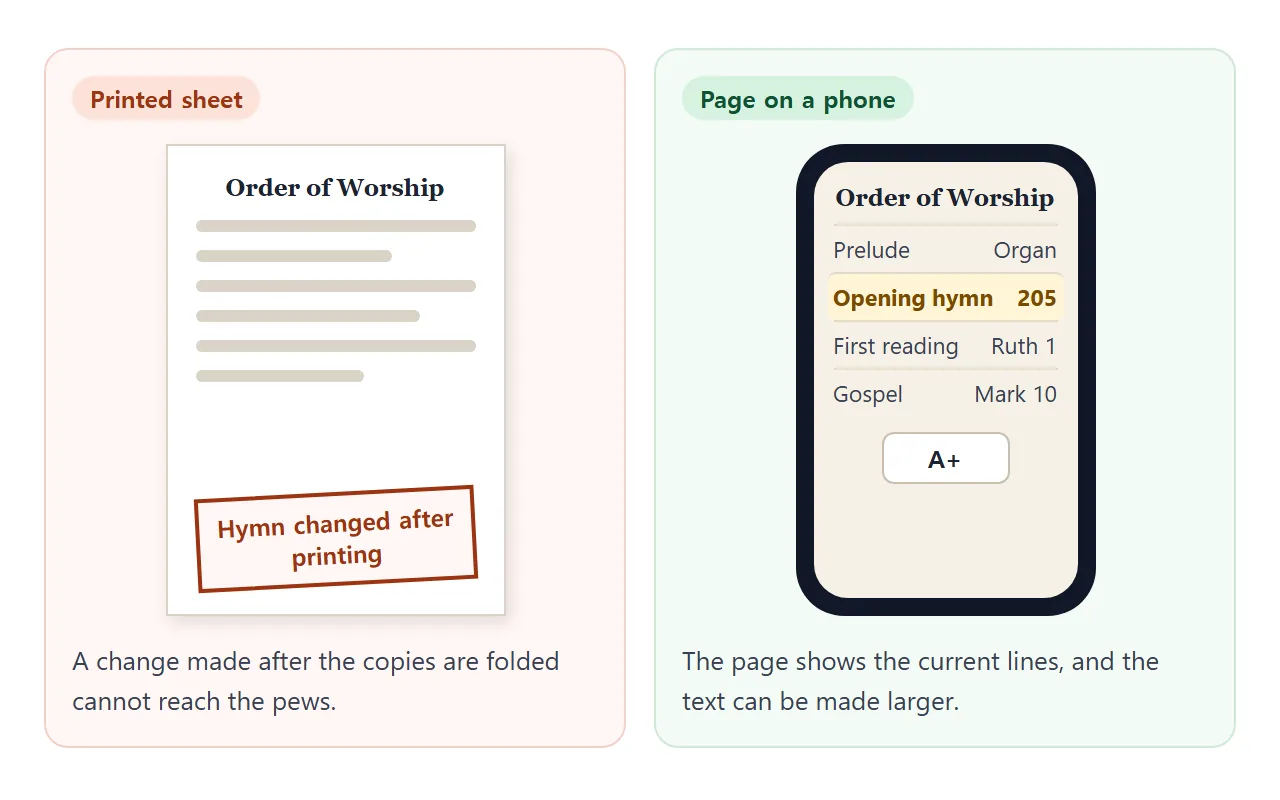
The three ways differ in what happens after the sheet is out.
| Printed sheet | PDF attachment | Page with a link | |
|---|---|---|---|
| Each week you | Retype, print, fold | Export a new PDF and send it again | Change the lines in the weekly block |
| A mistake found later | Cannot be fixed in copies already printed | Send a new file | Edit the page. Same link |
| Reader's first step | Pick up the sheet | Find and open the file | Scan the code or tap the link |
A page does not replace the printed sheet for everyone. It replaces the rebuild for the people who scan. Why links beat attachments goes through the general case.
What belongs on the page
Put what changes each week in the block, and leave the rest alone. That keeps the Monday edit small.
- Changes weekly: date, hymn numbers, readings, who leads, notices.
- Stays put: the place name, the four section headings, the footer.
- Hymns: numbers and titles are enough when people hold a book. Keep long texts off the page unless you are sure you may print them.
- People: the page is open to anyone with the link, so leave out phone numbers and anything private.
A pew is not a desk, so keep the text large. The example starts at 17 pixels, and A+ takes it up from there.
When it does not work
| What you see | Cause | Fix |
|---|---|---|
| The code scans, but last week's hymns show | The weekly block was not updated | Open the same document and change the block |
| A logo or photo is missing | It is loaded from another site, which NOS blocks | Draw it inside the page as an inline SVG |
| A new link shows up each week | A new share link was created | Edit the same document and keep the first link |
| Nothing happens when a Pixel scans the code | Camera scan suggestions is off | Turn it on in Camera settings |
| A sign-up form does nothing | It sends data to a server, which is blocked | Use a sheet at the door |
| A visitor's changes vanish | Only the owner's changes in View mode are saved | Keep edits for yourself |
| Text is too small | The page has no size control | Ask the AI for A- and A+ buttons |
A page that works for you but not on a phone usually needs the viewport meta tag. The prompt above asks for it.