The CSS color-scheme property tells the browser which colour schemes an element supports. Set color-scheme: light dark on the root, and on a dark system the browser draws its own parts dark: text inputs, select menus, checkboxes, scrollbars, and the default page background and text.
Try it below. The page sets no colours of its own. Each button changes one property on the root element.
<!doctype html>
<html lang="en">
<head>
<meta charset="utf-8">
<meta name="viewport" content="width=device-width, initial-scale=1">
<title>What color-scheme changes</title>
<style>
  /* No colours of our own: everything below is the browser's default look */
  body { margin: 0; padding: 14px; font-family: system-ui, sans-serif; }
  .bar { display: flex; flex-wrap: wrap; gap: 6px; margin-bottom: 4px; }
  .bar button[aria-pressed="true"] { outline: 2px solid #2563eb; }
  code { font-size: 13px; }
  .grid { display: grid; gap: 10px; max-width: 360px; }
  .scroll { height: 64px; overflow: auto; border: 1px solid GrayText; padding: 6px; }
</style>
</head>
<body>
<div class="bar">
  <button data-cs="normal" aria-pressed="true">not set</button>
  <button data-cs="light">light</button>
  <button data-cs="dark">dark</button>
  <button data-cs="light dark">light dark</button>
</div>
<p><code>:root { color-scheme: <b id="val">normal</b>; }</code><br>
  Your system prefers: <b id="os"></b></p>

<div class="grid">
  <input placeholder="Text input">
  <select><option>Select menu</option><option>Second</option></select>
  <label><input type="checkbox" checked> Checkbox</label>
  <textarea rows="2">Textarea</textarea>
  <div class="scroll">A box that scrolls. Its scrollbar is drawn by the browser.<br>Line 2<br>Line 3<br>Line 4<br>Line 5</div>
  <a href="#top">A plain link</a>
</div>

<script>
  const root = document.documentElement;
  const dark = matchMedia('(prefers-color-scheme: dark)');
  const os = document.getElementById('os');
  const showOs = () => { os.textContent = dark.matches ? 'dark' : 'light'; };
  showOs();
  dark.addEventListener('change', showOs);

  document.querySelectorAll('[data-cs]').forEach((btn) => {
    btn.addEventListener('click', () => {
      root.style.colorScheme = btn.dataset.cs;  // the only line that matters
      document.getElementById('val').textContent = btn.dataset.cs;
      document.querySelectorAll('[data-cs]').forEach((b) => b.setAttribute('aria-pressed', b === btn));
    });
  });
</script>
</body>
</html>
With "not set", the controls stay light even when your system is dark. With "light dark", they follow the system. "light" and "dark" pin one scheme whatever the system says.
What color-scheme changes
The property only affects what the browser draws by default. Your own background and color values stay exactly as written.
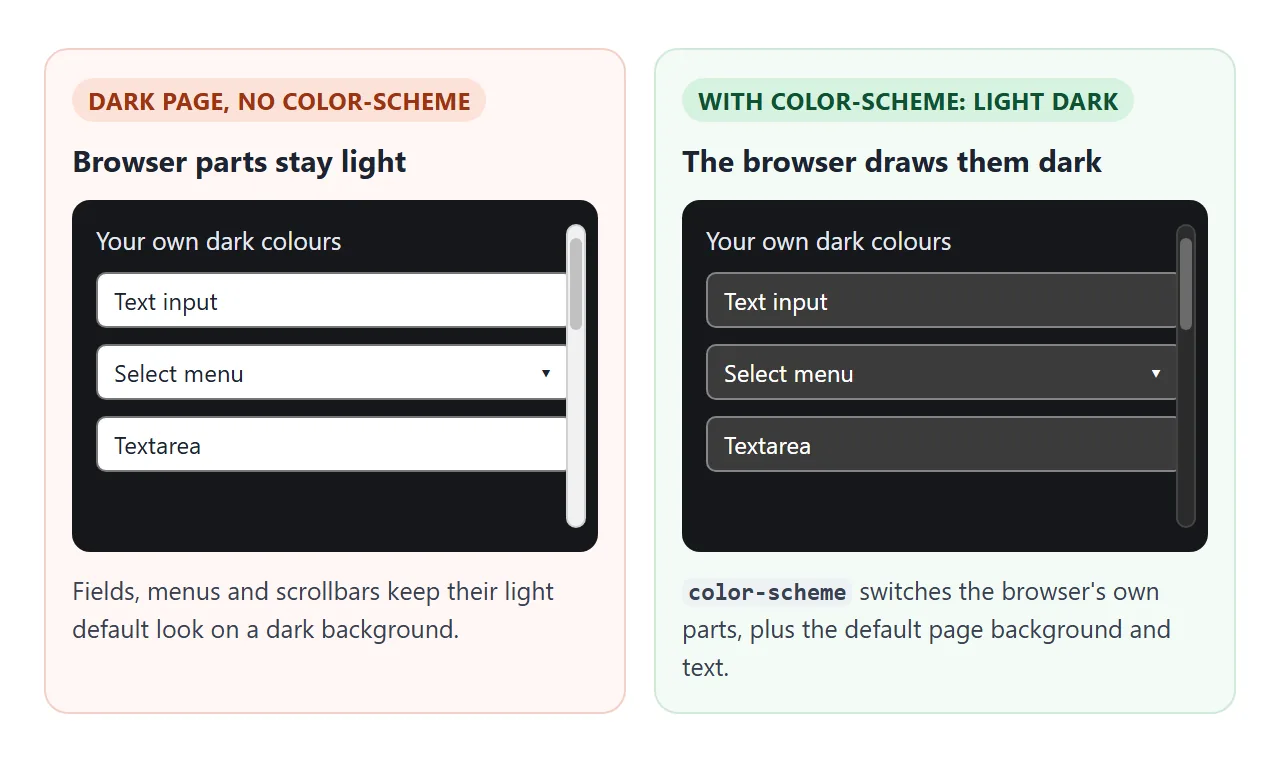
In a dark scheme the browser switches these defaults:
- Form controls: inputs, textareas, selects, buttons and checkboxes get dark backgrounds and light text.
- Scrollbars: on the page and on any scrolling box.
- Default colours: the page background, the text colour and the default link colour.
- System colours: the CSS keywords
CanvasandCanvasTextresolve to the dark background and text.
| Value | Meaning |
|---|---|
normal |
The default. The element is drawn in the light scheme. |
light |
Only light. |
dark |
Only dark, even on a light system. |
light dark |
Both. The reader's system setting picks. |
only light |
Light, and the browser should not darken it automatically. |
The property is inherited, so setting it on :root covers the whole page. You can also set it on one element, such as a code panel that should always be dark.
If only the tick colour of a checkbox needs to change, that is a different property: accent-color.
The meta tag or the CSS property
The same setting has an HTML form:
<meta name="color-scheme" content="light dark">
The meta tag applies to the whole page as soon as the head is parsed, before any stylesheet arrives. That helps avoid a white flash on a dark system while the CSS is still loading.
The CSS property works per element and can be changed by script, which is what a theme switch needs:
:root { color-scheme: light dark; }
You can use both; they do not conflict. One detail for debugging: with only the meta tag, this line still reports normal, even though the page is drawn dark.
getComputedStyle(document.documentElement).colorScheme
light-dark(): two colours in one value
color-scheme handles the browser's parts. For your own colours, the light-dark() function takes two colours and returns the first in a light scheme and the second in a dark one.
:root { color-scheme: light dark; }
.card {
  background: light-dark(#ffffff, #1f2330);
  color: light-dark(#1d2330, #e8ebf2);
}
It does not read the system setting itself. It reads the element's used colour scheme, which comes from color-scheme.
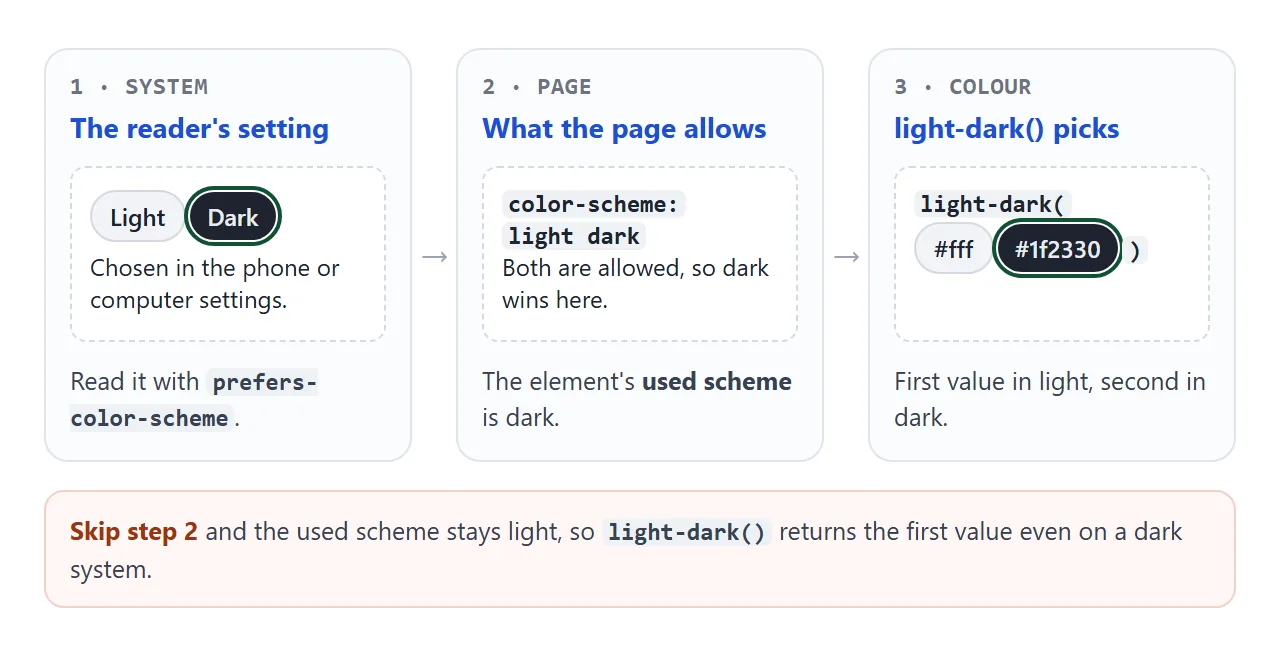
So without color-scheme, light-dark() returns the light colour on every system. The two cards below use the same light-dark() rules. Only the left one has color-scheme: light dark.
<!doctype html>
<html lang="en">
<head>
<meta charset="utf-8">
<meta name="viewport" content="width=device-width, initial-scale=1">
<title>light-dark() needs color-scheme</title>
<style>
  body { margin: 0; padding: 14px; font-family: system-ui, sans-serif; background: #e9ebef; color: #1d2330; }
  .row { display: grid; grid-template-columns: 1fr 1fr; gap: 10px; }
  .card {
    padding: 12px; border-radius: 10px; font-size: 13px; line-height: 1.45;
    /* first value for light, second for dark */
    background: light-dark(#ffffff, #1f2330);
    color: light-dark(#1d2330, #e8ebf2);
    border: 2px solid light-dark(#d5d9e0, #3b4252);
  }
  .card h3 { margin: 0 0 6px; font-size: 14px; color: light-dark(#0f5fc7, #7cb4ff); }
  .card input { width: 100%; box-sizing: border-box; margin-top: 8px; }
  .with { color-scheme: light dark; }  /* follows the system */
  /* .without has no color-scheme, so light-dark() picks the first value */
  .bar { display: flex; flex-wrap: wrap; gap: 6px; margin-bottom: 12px; font-size: 13px; align-items: center; }
</style>
</head>
<body>
<div class="bar">
  Try the left card as:
  <button data-cs="light">light</button>
  <button data-cs="dark">dark</button>
  <button data-cs="light dark">light dark</button>
</div>
<div class="row">
  <div class="card with">
    <h3>color-scheme: <span id="now">light dark</span></h3>
    light-dark() picks the second colour when the scheme is dark.
    <input placeholder="Input follows too">
  </div>
  <div class="card without">
    <h3>no color-scheme</h3>
    light-dark() picks the first colour here, even on a dark system.
    <input placeholder="Input stays light">
  </div>
</div>
<p style="font-size:13px">A page cannot change your system setting. With <code>light dark</code>, the left card follows it. The buttons pin the card to one scheme instead.</p>

<script>
  const withCard = document.querySelector('.with');
  document.querySelectorAll('[data-cs]').forEach((btn) => {
    btn.addEventListener('click', () => {
      withCard.style.colorScheme = btn.dataset.cs;
      document.getElementById('now').textContent = btn.dataset.cs;
    });
  });
</script>
</body>
</html>
light-dark() accepts colours only. For other values that change between schemes, such as an image, use the media query below.
Putting light-dark() inside a CSS variable works in CSS: --bg: light-dark(#fff, #15171c) and then background: var(--bg). In JavaScript, though, reading that variable returns the text light-dark(#fff, #15171c), not a colour.
prefers-color-scheme and the matchMedia listener
The media query reads the reader's system setting directly:
@media (prefers-color-scheme: dark) {
  .hero { background-image: url(hero-dark.jpg); }
}
The same test is available in JavaScript through matchMedia. Its change event fires when the reader switches their system theme while the page is open:
const dark = matchMedia('(prefers-color-scheme: dark)');
console.log(dark.matches);  // true on a dark system
dark.addEventListener('change', (e) => {
  console.log(e.matches ? 'now dark' : 'now light');
});
CSS reacts to that switch on its own. Script only needs the listener for things CSS does not reach, such as a canvas. The media query guide covers the other features, like width and print.
Canvas does not follow color-scheme
A <canvas> is a bitmap your script paints. Its 2D context starts with fillStyle and strokeStyle set to #000000 in both schemes, so a chart drawn with the defaults is black on a dark page.
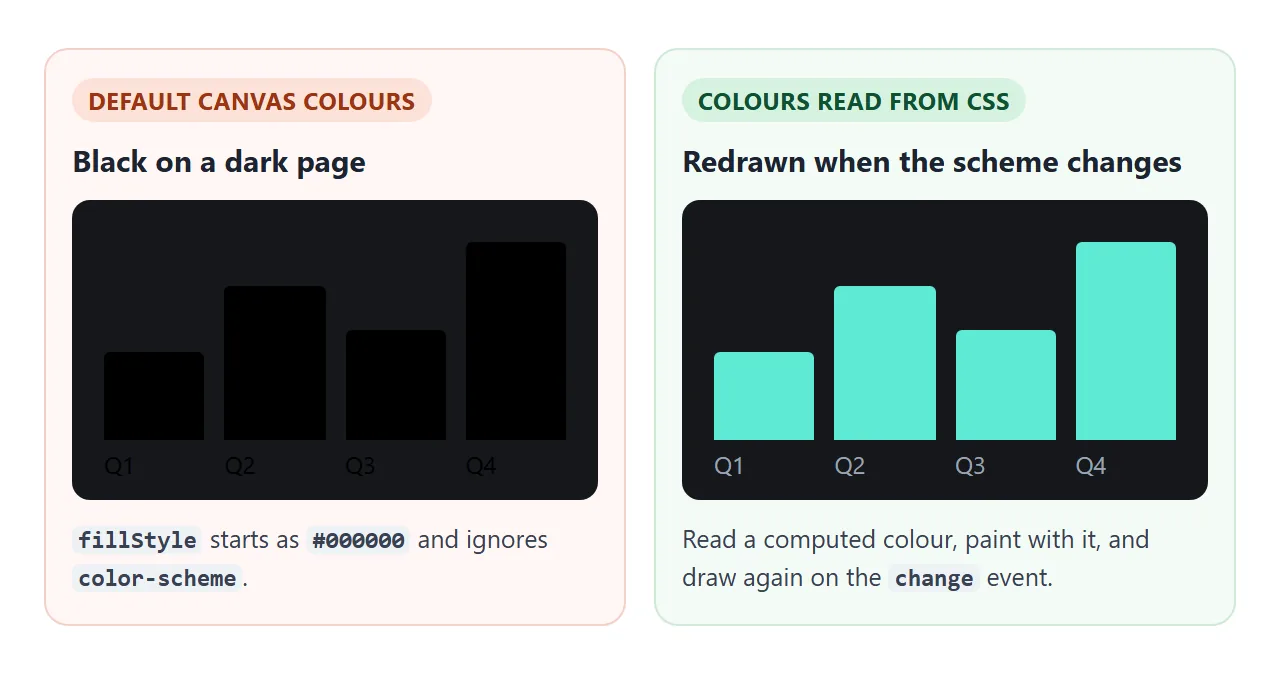
Two traps here:
- Assigning a
light-dark()string tofillStyledoes not work. In our Chrome test the assignment was ignored and the fill stayed black. - Reading a custom property returns the raw
light-dark(...)text, as noted above.
The reliable route is a computed colour. Set a hidden element's color to the variable and read it back:
probe.style.color = 'var(--accent)';
ctx.fillStyle = getComputedStyle(probe).color;  // "rgb(94, 234, 212)"
Then call your draw function again from the matchMedia listener and from your theme switch. The canvas drawing guide covers the drawing side.
A finished example: Auto, Light and Dark
This puts the pieces together. The root declares light dark, every colour uses light-dark(), and the switch pins the scheme by setting color-scheme to light or dark on the root. Auto removes the pin.
<!doctype html>
<html lang="en">
<head>
<meta charset="utf-8">
<meta name="viewport" content="width=device-width, initial-scale=1">
<meta name="color-scheme" content="light dark">
<title>Auto, light, dark switch</title>
<style>
  :root {
    color-scheme: light dark;
    --bg: light-dark(#f6f7f9, #15171c);
    --card: light-dark(#ffffff, #20242c);
    --ink: light-dark(#1d2330, #e6e9ef);
    --muted: light-dark(#5b6270, #9aa3b2);
    --accent: light-dark(#0f766e, #5eead4);
  }
  :root[data-theme="light"] { color-scheme: light; }
  :root[data-theme="dark"] { color-scheme: dark; }
  body { margin: 0; padding: 14px; font-family: system-ui, sans-serif; background: var(--bg); color: var(--ink); }
  .switch { display: inline-flex; border: 1px solid var(--muted); border-radius: 99px; overflow: hidden; }
  .switch button { border: 0; padding: 7px 14px; background: transparent; color: var(--ink); font: inherit; cursor: pointer; }
  .switch button[aria-pressed="true"] { background: var(--accent); color: var(--card); }
  .card { background: var(--card); border-radius: 12px; padding: 14px; margin-top: 12px; max-width: 420px; }
  .card p { margin: 0 0 8px; color: var(--muted); font-size: 13px; }
  canvas { width: 100%; height: 140px; display: block; }
  input { margin-top: 10px; width: 100%; box-sizing: border-box; }
</style>
</head>
<body>
<div class="switch" role="group" aria-label="Theme">
  <button data-theme="auto" aria-pressed="true">Auto</button>
  <button data-theme="light">Light</button>
  <button data-theme="dark">Dark</button>
</div>
<div class="card">
  <p>Showing <b id="used"></b>. The chart is a canvas, so it is redrawn with the new colours.</p>
  <canvas id="chart"></canvas>
  <input placeholder="A form field, styled by color-scheme">
</div>

<script>
  const root = document.documentElement;
  const dark = matchMedia('(prefers-color-scheme: dark)');
  const canvas = document.getElementById('chart');
  const data = [4, 7, 5, 9, 6, 8];

  function usedScheme() {
    const t = root.dataset.theme;
    if (t === 'light' || t === 'dark') return t;
    return dark.matches ? 'dark' : 'light';
  }

  // A variable holds the text "light-dark(...)". A computed color is resolved.
  const probe = document.createElement('span');
  probe.hidden = true;
  document.body.append(probe);
  function colour(name) {
    probe.style.color = 'var(' + name + ')';
    return getComputedStyle(probe).color;  // e.g. "rgb(94, 234, 212)"
  }

  function draw() {
    // canvas ignores color-scheme: read the CSS colours and paint with them
    const muted = colour('--muted');
    const accent = colour('--accent');
    const ratio = window.devicePixelRatio || 1;
    const w = canvas.clientWidth, h = canvas.clientHeight;
    canvas.width = w * ratio; canvas.height = h * ratio;  // also clears it
    const ctx = canvas.getContext('2d');
    ctx.scale(ratio, ratio);
    ctx.font = '12px system-ui, sans-serif';
    const bw = w / data.length;
    data.forEach((v, i) => {
      ctx.fillStyle = accent;
      ctx.fillRect(i * bw + 6, h - 18 - v * 12, bw - 12, v * 12);
      ctx.fillStyle = muted;
      ctx.fillText('Q' + (i + 1), i * bw + 8, h - 4);
    });
    document.getElementById('used').textContent = usedScheme();
  }

  document.querySelectorAll('[data-theme]').forEach((btn) => {
    btn.addEventListener('click', () => {
      if (btn.dataset.theme === 'auto') delete root.dataset.theme;
      else root.dataset.theme = btn.dataset.theme;
      document.querySelectorAll('[data-theme]').forEach((b) => b.setAttribute('aria-pressed', b === btn));
      draw();
    });
  });

  dark.addEventListener('change', draw);  // system switched while the page is open
  addEventListener('resize', draw);
  draw();
</script>
</body>
</html>
:root { color-scheme: light dark; }
:root[data-theme="light"] { color-scheme: light; }
:root[data-theme="dark"] { color-scheme: dark; }
Because light-dark() follows color-scheme, one attribute on the root flips your colours and the browser's controls together. There is no second set of dark rules to keep in step.
The example forgets the choice when the page reloads. A real site would save it, and apply it in the head before the page draws. For the wider approach, including images, icons and contrast, see dark mode CSS.
When it does not work
| What you see | Cause | Fix |
|---|---|---|
| Dark page, white input fields | No color-scheme declared |
:root { color-scheme: light dark; } |
light-dark() always gives the light colour |
No color-scheme on the element or its ancestors |
Declare light dark on :root |
| An always-dark panel has light fields and scrollbars | The dark colours come from your CSS only | Set color-scheme: dark on that panel |
| Chart text is black on a dark page | Canvas uses its own default colours | Read a computed colour and draw with it |
| Chart does not change when the system switches | Nothing redraws it | Redraw in the matchMedia change listener |
fillStyle from a variable stays black |
The variable holds light-dark(...) text |
Resolve it through getComputedStyle(el).color |
| White flash before the dark page appears | The stylesheet loads after the first paint | Add the color-scheme meta tag to the head |
Share it as a link
Colour schemes are hard to show in a screenshot, because a screenshot only captures one of them. A live page lets each person see it in their own system setting and press the switch themselves.
To send the working version, paste the page into a NOS document and choose Create share link. HTML to link walks through it.
The page renders as written and its scripts run, so the canvas redraws and the switch works for whoever opens it. If you change the code later, the same link shows the new version.