To change the case of text with CSS, set text-transform on the element: uppercase for all capitals, lowercase for all small letters, capitalize for a capital at the start of each word.
The text in your HTML does not change. Only the way the browser draws it does.
.btn { text-transform: uppercase; }
Try each value on the same sentence. The last line shows the text as it sits in the HTML, which stays the same whatever you pick.
<!doctype html>
<html lang="en">
<head>
<meta charset="utf-8">
<meta name="viewport" content="width=device-width, initial-scale=1">
<title>text-transform switcher</title>
<style>
  body { margin: 0; padding: 16px; font-family: system-ui, sans-serif; background: #f4f5f7; color: #1d2330; }
  .bar { display: flex; flex-wrap: wrap; gap: 6px; margin-bottom: 12px; }
  .bar button {
    font: 600 13px ui-monospace, Consolas, monospace; padding: 7px 10px;
    border: 1px solid #cfd4dc; border-radius: 8px; background: #fff; color: #1d2330; cursor: pointer;
  }
  .bar button[aria-pressed="true"] { background: #1d2330; color: #fff; border-color: #1d2330; }
  .card { background: #fff; border-radius: 12px; padding: 14px 16px; box-shadow: 0 4px 14px rgba(0, 0, 0, .08); }
  .sample { font-size: 18px; line-height: 1.5; margin: 0 0 10px; }
  .tr-row { display: flex; align-items: center; gap: 12px; flex-wrap: wrap; border-top: 1px dashed #d5d9e0; padding-top: 10px; }
  .tr-row label { font-size: 13px; color: #5b6270; }
  .note { font-size: 13px; color: #5b6270; margin: 10px 0 0; }
  code { font: 12.5px ui-monospace, Consolas, monospace; background: #eef1f5; padding: 1px 4px; border-radius: 4px; }
  #warn { color: #9a3412; }
</style>
</head>
<body>
<div class="bar" id="bar">
  <button type="button" aria-pressed="true">none</button>
  <button type="button" aria-pressed="false">uppercase</button>
  <button type="button" aria-pressed="false">lowercase</button>
  <button type="button" aria-pressed="false">capitalize</button>
  <button type="button" aria-pressed="false">full-width</button>
</div>

<div class="card">
  <p class="sample" id="en">My iPhone and a McDonald's receipt, both from NEW YORK.</p>
  <div class="tr-row">
    <p class="sample" id="tr" lang="en" style="margin:0">istanbul, IĞDIR</p>
    <label><input type="checkbox" id="lang"> lang="tr"</label>
  </div>
  <p class="note">Rule: <code id="rule">text-transform: none</code></p>
  <p class="note">Text in the HTML: <code id="raw"></code></p>
  <p class="note" id="warn"></p>
</div>

<script>
  const en = document.getElementById('en');
  const tr = document.getElementById('tr');
  const buttons = document.querySelectorAll('#bar button');

  buttons.forEach((btn) => btn.addEventListener('click', () => {
    const value = btn.textContent;
    en.style.textTransform = value;
    tr.style.textTransform = value;
    buttons.forEach((b) => b.setAttribute('aria-pressed', b === btn));
    document.getElementById('rule').textContent = 'text-transform: ' + value;
    // full-width is in the spec, but not every browser draws it
    document.getElementById('warn').textContent =
      value === 'full-width' && !CSS.supports('text-transform', 'full-width')
        ? 'This browser does not support full-width, so nothing changes.' : '';
  }));

  // lang decides how i and I change case
  document.getElementById('lang').addEventListener('change', (e) => {
    tr.lang = e.target.checked ? 'tr' : 'en';
  });

  // the text in the DOM never changes, only the display
  document.getElementById('raw').textContent = en.textContent;
</script>
</body>
</html>
The values of text-transform
| Value | What it draws | "my iPhone from NEW YORK" |
|---|---|---|
none |
The text as written (the default) | my iPhone from NEW YORK |
uppercase |
Every letter as a capital | MY IPHONE FROM NEW YORK |
lowercase |
Every letter as a small letter | my iphone from new york |
capitalize |
The first letter of each word as a capital, the rest untouched | My IPhone From NEW YORK |
full-width |
Characters in their full-width forms, for mixing with East Asian text | Not drawn by every browser |
full-width is part of the CSS specification, but some browsers do not support it. The first example checks with CSS.supports('text-transform', 'full-width') and tells you when the current browser ignores it.
text-transform is inherited. Set it on a <nav> and every link inside is transformed too, until a child sets text-transform: none.
It changes the display, not the text
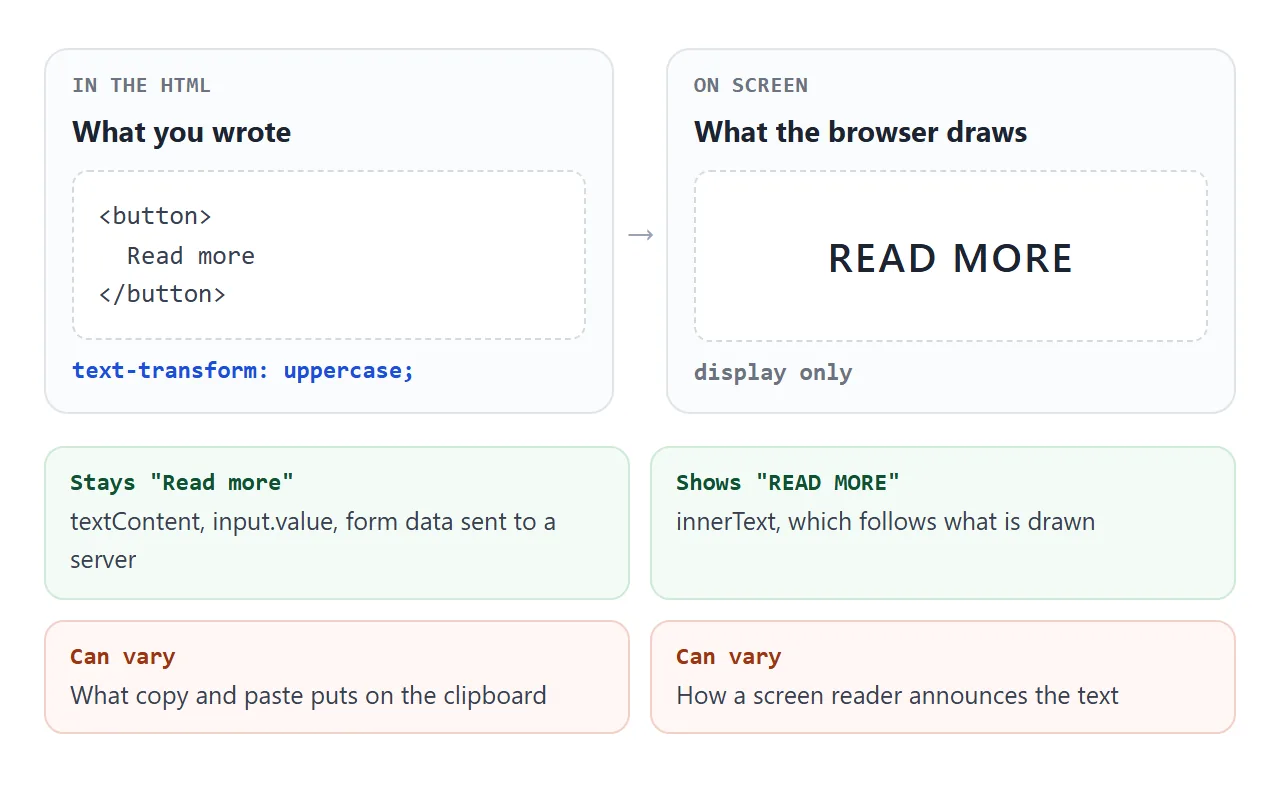
The underlying text stays the same. In JavaScript, element.textContent still returns the text as typed, and a form field's value holds what the user typed. innerText is the exception: it follows what is rendered, so it returns the capitals.
What copy and paste or a screen reader gets can vary. Depending on the browser and the tool, a copied uppercase heading may paste in its original case, and a screen reader may read the original words.
That leads to a simple rule. If the case carries meaning, such as an abbreviation like NASA or a product code, type it that way in the HTML. Use text-transform for pure styling, such as buttons, labels and small headings.
Why capitalize does not give you title case
capitalize looks like a title case switch, but it only touches the first letter of each word. It never lowercases the others, and it does not know which words should stay small.
<!doctype html>
<html lang="en">
<head>
<meta charset="utf-8">
<meta name="viewport" content="width=device-width, initial-scale=1">
<title>capitalize vs a JavaScript title case</title>
<style>
  body { margin: 0; padding: 16px; font-family: system-ui, sans-serif; background: #f4f5f7; color: #1d2330; }
  label { font-size: 13px; color: #5b6270; }
  input { box-sizing: border-box; width: 100%; font: 15px system-ui, sans-serif; padding: 8px 10px; margin: 4px 0 12px; border: 1px solid #cfd4dc; border-radius: 8px; }
  .row { background: #fff; border-radius: 10px; padding: 10px 12px; margin-bottom: 8px; box-shadow: 0 2px 8px rgba(0, 0, 0, .06); }
  .src { font: 12px ui-monospace, Consolas, monospace; color: #6b7280; }
  .out { display: grid; grid-template-columns: 1fr 1fr; gap: 10px; margin-top: 4px; font-size: 15px; }
  .out span::before { display: block; font: 600 11px ui-monospace, Consolas, monospace; margin-bottom: 2px; }
  .css { text-transform: capitalize; color: #9a3412; }
  .css::before { content: "CSS capitalize"; text-transform: none; }
  .js { color: #0f5132; }
  .js::before { content: "JS titleCase()"; }
</style>
</head>
<body>
<label for="own">Type your own title</label>
<input id="own" value="the wind in the willows">
<div id="list"></div>

<script>
  const SMALL = new Set(['a', 'an', 'and', 'at', 'for', 'in', 'of', 'on', 'or', 'the', 'to']);
  const KEEP = new Map([['iphone', 'iPhone'], ['mcdonald', 'McDonald'], ['usa', 'USA']]);  // words with their own spelling

  function titleCase(text) {
    return text.toLowerCase().split(' ').map((word, i) => {
      if (KEEP.has(word)) return KEEP.get(word);
      if (i > 0 && SMALL.has(word)) return word;               // keep "of", "the" small
      return word.charAt(0).toUpperCase() + word.slice(1);
    }).join(' ');
  }

  function row(text) {
    const div = document.createElement('div');
    div.className = 'row';
    div.innerHTML = '<div class="src"></div><div class="out"><span class="css"></span><span class="js"></span></div>';
    div.querySelector('.src').textContent = 'source: ' + text;
    div.querySelector('.css').textContent = text;              // CSS changes only the display
    div.querySelector('.js').textContent = titleCase(text);     // JS changes the text itself
    return div;
  }

  const list = document.getElementById('list');
  const samples = ['my new iPhone case', 'old McDonald had a farm', 'ALL CAPS FROM A FORM', 'made in the USA'];

  function render() {
    list.replaceChildren(row(document.getElementById('own').value), ...samples.map(row));
  }
  document.getElementById('own').addEventListener('input', render);
  render();
</script>
</body>
</html>
Three things go wrong on real text:
- Brand names break.
iPhonebecomesIPhone, because the first letter is capitalized and nothing else changes. - Capitals stay capitals. Text typed in ALL CAPS, for example in a form, is displayed in ALL CAPS.
- Small words get capitals.
ofandtheare words, so they becomeOfandThe.
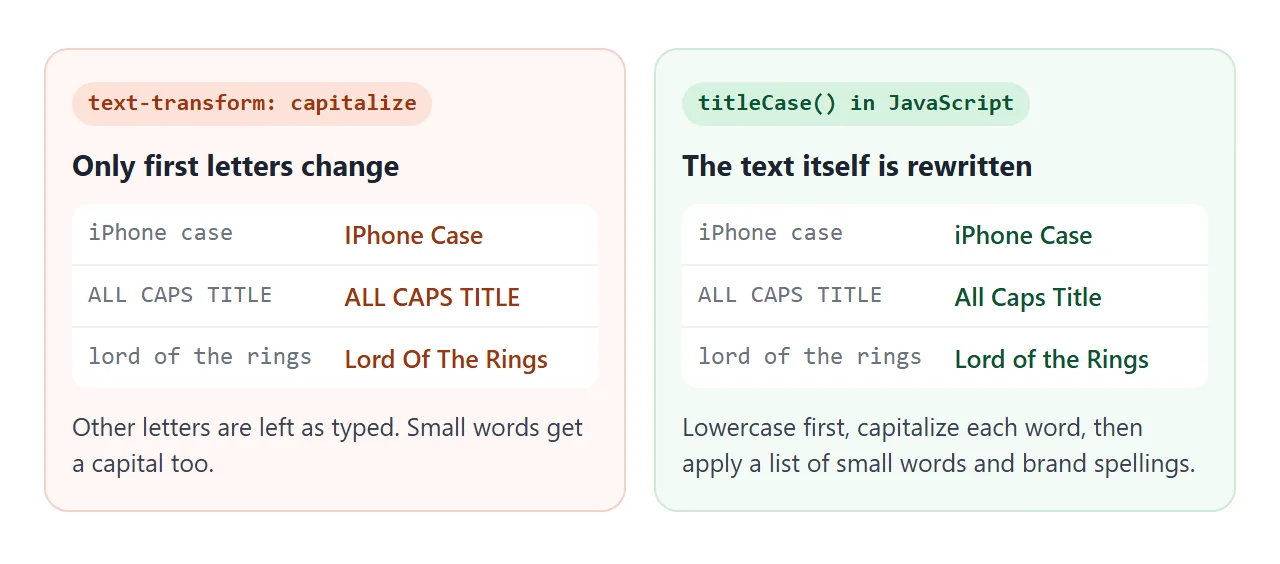
The fix is to do title case in JavaScript. Lowercase the text first, capitalize each word, keep a list of small words that stay lowercase, and keep a list of spellings such as iPhone that should be left alone:
const SMALL = new Set(['a', 'an', 'and', 'of', 'the', 'to']);
const KEEP = new Map([['iphone', 'iPhone']]);

function titleCase(text) {
  return text.toLowerCase().split(' ').map((word, i) => {
    if (KEEP.has(word)) return KEEP.get(word);
    if (i > 0 && SMALL.has(word)) return word;
    return word.charAt(0).toUpperCase() + word.slice(1);
  }).join(' ');
}
This changes the text itself, so copy and paste, search and screen readers all get the same result.
Casing depends on the language
Changing case is not the same in every language. In Turkish, the lowercase i has a dot and its capital is İ, also with a dot. The capital I without a dot pairs with the lowercase ı.
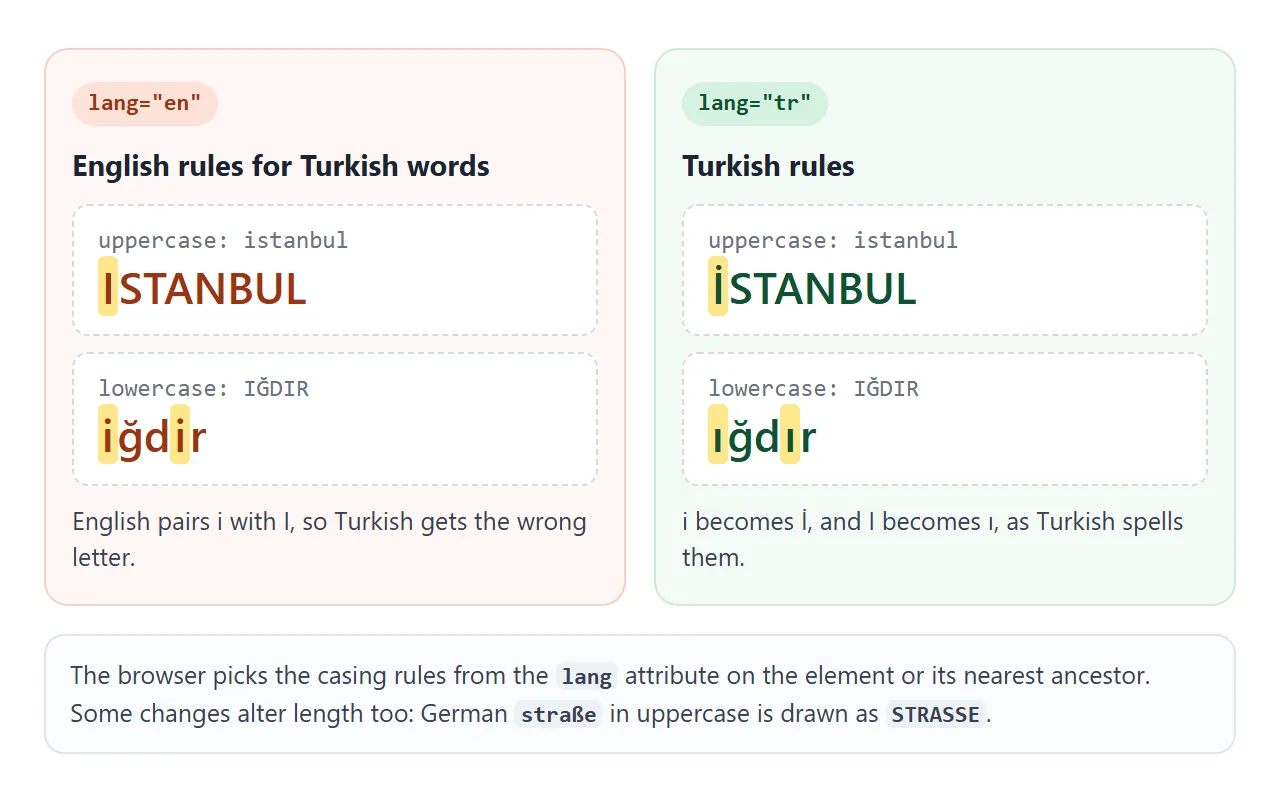
The browser picks the rules from the lang attribute on the element or its nearest ancestor. With lang="en", istanbul in uppercase becomes ISTANBUL. With lang="tr", it becomes İSTANBUL, the Turkish spelling.
Some changes also alter the length of the text. Under the standard Unicode case rules, German ß becomes SS, so straße in uppercase is drawn as STRASSE.
Set lang on the <html> element for the whole page, and on any element that holds a different language.
Uppercase labels need letter-spacing
Capitals share one height and have no parts that rise above or drop below the line. Set tight, the letters of a word in capitals can look crowded.
A little extra spacing helps short uppercase text such as buttons, tags and table headers:
.label {
  text-transform: uppercase;
  letter-spacing: 0.08em;
  font-size: 12px;
}
Use em so the spacing grows with the font size. Keep uppercase for short text such as labels and buttons, not whole paragraphs. For vertical spacing between lines, see line height in CSS.
Small caps and drop caps
font-variant: small-caps is a different tool from uppercase. Capitals stay full size, and lowercase letters are drawn as smaller capitals. If the font has no small-cap letters, the browser may make them by scaling down its capitals.
A drop cap is a large first letter at the start of a paragraph. The ::first-letter pseudo-element selects it, so you do not have to wrap the letter in a <span>:
.story::first-letter {
  float: left;
  font-size: 3.4em;
  line-height: 0.8;
  padding: 6px 8px 0 0;
}
The finished example puts all three together: uppercase buttons and a tag with letter-spacing, a small-caps heading and a paragraph with a drop cap. Untick the checkbox to see the uppercase text without the extra spacing.
<!doctype html>
<html lang="en">
<head>
<meta charset="utf-8">
<meta name="viewport" content="width=device-width, initial-scale=1">
<title>Uppercase labels, small caps and a drop cap</title>
<style>
  body { margin: 0; padding: 16px; font-family: Georgia, "Times New Roman", serif; background: #efece6; color: #23201b; }
  .card { max-width: 560px; margin: 0 auto; background: #fff; border-radius: 14px; padding: 18px 20px; box-shadow: 0 6px 20px rgba(0, 0, 0, .08); }

  /* uppercase UI text: small size, a little extra spacing */
  .label, .btn, .toggle {
    font-family: system-ui, sans-serif;
    text-transform: uppercase;
    letter-spacing: .08em;
  }
  .label { display: inline-block; font-size: 11px; font-weight: 700; color: #8a5a00; background: #fff1cc; padding: 4px 8px; border-radius: 99px; }

  /* small caps: lowercase letters drawn as small capitals */
  h2 { font-variant: small-caps; font-size: 26px; margin: 10px 0 12px; letter-spacing: .02em; }

  /* drop cap on the first letter of the paragraph */
  .story::first-letter {
    float: left; font-size: 3.4em; line-height: .8;
    padding: 6px 8px 0 0; color: #b4541a; font-weight: 700;
  }
  .story { font-size: 16px; line-height: 1.6; margin: 0 0 16px; }

  .actions { display: flex; flex-wrap: wrap; gap: 8px; }
  .btn { font-size: 13px; font-weight: 700; padding: 10px 16px; border-radius: 8px; border: 0; cursor: pointer; background: #23201b; color: #fff; }
  .btn.ghost { background: transparent; color: #23201b; box-shadow: inset 0 0 0 1.5px #23201b; }
  .toggle { font-size: 11px; color: #6b665d; margin-top: 14px; display: flex; gap: 6px; align-items: center; }
  .tight .label, .tight .btn { letter-spacing: normal; }
  #out { font-family: system-ui, sans-serif; font-size: 13px; color: #0f5132; min-height: 18px; margin: 10px 0 0; }
</style>
</head>
<body>
<div class="card" id="card">
  <span class="label">New issue</span>
  <h2>The Harbour Journal</h2>
  <p class="story">Once the fog lifts, the boats come back in the order they left. The first crew to tie up gets the best price at the market, and everyone on the quay knows it.</p>
  <div class="actions">
    <button class="btn" type="button">Read more</button>
    <button class="btn ghost" type="button">Save for later</button>
  </div>
  <p id="out"></p>
  <label class="toggle"><input type="checkbox" id="spacing" checked> Letter-spacing on uppercase text</label>
</div>

<script>
  const card = document.getElementById('card');
  document.getElementById('spacing').addEventListener('change', (e) => {
    card.classList.toggle('tight', !e.target.checked);   // compare with and without tracking
  });
  // the HTML says "Read more"; only the display is uppercase
  card.querySelectorAll('.btn').forEach((btn) => btn.addEventListener('click', () => {
    document.getElementById('out').textContent = 'Text in the HTML: "' + btn.textContent + '"';
  }));
</script>
</body>
</html>
::first-letter and ::before are covered in more depth in CSS ::before and ::after. To pick the typeface itself, see how to change the font in HTML.
When it does not work
| What you see | Cause | Fix |
|---|---|---|
capitalize leaves ALL CAPS in capitals |
capitalize only changes first letters |
Lowercase the text in JavaScript first, then capitalize |
iPhone shows as IPhone |
capitalize capitalizes the first letter of every word |
Leave it out of the rule, or use a title case function with exceptions |
| Pasted text is in a different case from the page | The HTML text and the drawn text differ | Type the case you need into the HTML |
| Text you did not target is in capitals | text-transform is inherited from a parent |
Set text-transform: none on the child |
| The field shows capitals, but the saved value is lowercase | text-transform does not change value |
Convert with toUpperCase() before saving |
| Turkish or other words get the wrong letters | No lang, or the wrong one |
Set lang on the page or the element |
full-width does nothing |
The browser does not support that value | Check CSS.supports() and convert the text itself if needed |
| The rule has no effect at all | A more specific selector sets another value | Inspect the element in developer tools to see which rule wins |
Share it as a link
Case and spacing are easier to judge on a real page than in a screenshot. A link lets the other person click the buttons, switch values and see the text on their own screen.
To send the working version, paste the page into a NOS document and choose Create share link. HTML to link walks through it.
The page renders as written and its scripts run, so the people you send it to can try every value themselves. If you change the code later, the same link shows the new version.