In the browser, textformatupdate is an event of the EditContext API. It fires while someone composes text with an Input Method Editor (IME), and it tells your code which part of the text to underline and in what style.
Searched "outlook textformat html"? Outlook's own setting for an email body, olFormatHTML in VBA, is a separate thing. It is covered in Send HTML email in Outlook. This guide is about the web event.
MDN marks the EditContext API as experimental with limited availability, so check its compatibility table before relying on it. Try it first. Click the box and type.
<!doctype html>
<html lang="en">
<head>
<meta charset="utf-8">
<meta name="viewport" content="width=device-width, initial-scale=1">
<title>textformatupdate basics</title>
<style>
  body { margin: 0; padding: 16px; font-family: system-ui, sans-serif; background: #f4f5f7; color: #1d2330; }
  #editor {
    min-height: 56px; padding: 12px 14px; box-sizing: border-box;
    background: #fff; border: 2px solid #d5d9e0; border-radius: 10px;
    font-size: 22px; line-height: 1.5; white-space: pre-wrap; overflow-wrap: anywhere;
    caret-color: transparent;  /* this small demo draws no caret of its own */
  }
  #editor:focus { outline: none; border-color: #2563eb; }
  #editor:empty::before { content: "Click here, then type"; color: #9aa3b2; }
  p { font-size: 13.5px; line-height: 1.5; margin: 12px 0 8px; }
  pre {
    margin: 0; padding: 10px 12px; min-height: 110px; box-sizing: border-box;
    background: #1d2330; color: #e6edf7; border-radius: 8px;
    font: 12.5px/1.55 ui-monospace, Consolas, monospace; white-space: pre-wrap; overflow-wrap: anywhere;
  }
</style>
</head>
<body>
<div id="editor"></div>
<p>A plain keyboard fires <b>textupdate</b>. An IME (Japanese, Chinese, Korean) also fires <b>textformatupdate</b> while you compose.</p>
<pre id="log"></pre>

<script>
  const editor = document.getElementById('editor');
  const log = document.getElementById('log');
  const lines = [];
  function note(msg) {
    lines.unshift(msg);
    lines.length = Math.min(lines.length, 6);
    log.textContent = lines.join('\n');
  }

  if (!('EditContext' in window)) {
    note('This browser has no EditContext, so there is no textformatupdate event here.');
  } else {
    const ctx = new EditContext();
    editor.editContext = ctx;  // the div is now focusable and typing goes to ctx, not to the DOM

    // The browser does not draw anything. Redraw the div from ctx.text yourself.
    function draw(formats) {
      editor.textContent = '';
      let pos = 0;
      for (const f of formats) {
        editor.append(ctx.text.slice(pos, f.rangeStart));
        const span = document.createElement('span');
        span.textContent = ctx.text.slice(f.rangeStart, f.rangeEnd);
        span.style.textDecoration = f.underlineStyle === 'none' ? 'none' : 'underline ' + f.underlineStyle;
        span.style.textDecorationThickness = f.underlineThickness === 'thick' ? '3px' : '1px';
        editor.append(span);
        pos = f.rangeEnd;
      }
      editor.append(ctx.text.slice(pos));
    }

    ctx.addEventListener('textupdate', (e) => {
      draw([]);
      note('textupdate: ' + JSON.stringify(e.text));
    });

    ctx.addEventListener('textformatupdate', (e) => {
      const formats = e.getTextFormats();  // an array of TextFormat objects
      draw(formats);
      note('textformatupdate: ' + (formats.map((f) =>
        f.rangeStart + '-' + f.rangeEnd + ' ' + f.underlineThickness + ' ' + f.underlineStyle
      ).join(' | ') || 'no formats'));
    });

    ctx.addEventListener('compositionstart', () => note('compositionstart'));
    ctx.addEventListener('compositionend', () => note('compositionend'));
    note('Ready. Type in the box above.');
  }
</script>
</body>
</html>
A plain keyboard only produces textupdate lines. MDN notes that a textformatupdate listener is only called when text is composed with an IME window or another platform-specific editing surface.
To see real formats, switch your system to an IME such as Japanese, Chinese or Korean and type in the box.
What EditContext is, and why this event exists
For a <textarea>, an <input> or a contenteditable element, the browser supplies the text edit context for you. For a custom editable region, such as text you draw on a <canvas>, you supply it with EditContext.
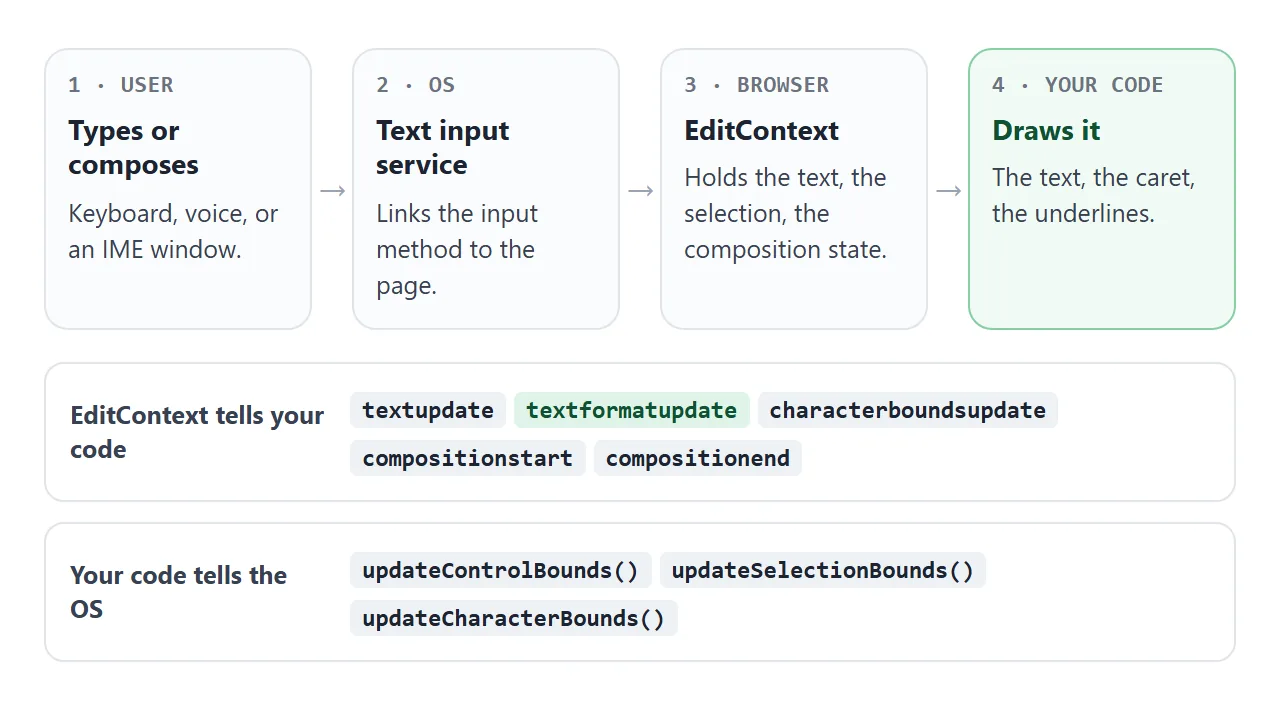
Once an EditContext is attached, the browser does not change the DOM when the user types. Your code owns the drawing: the text, the selection, and the underlines an IME asks for. That last job is what textformatupdate is for.
The smallest code
Two lines of setup, one listener:
const ctx = new EditContext();
editor.editContext = ctx;   // editor is a div or a canvas

ctx.addEventListener('textformatupdate', (e) => {
  for (const f of e.getTextFormats()) {
    console.log(f.rangeStart, f.rangeEnd, f.underlineStyle, f.underlineThickness);
  }
});
- Create the context.
new EditContext()holds the text, the selection and the composition state. - Attach it. Assign it to
editor.editContext. This makes the element focusable and routes typing to the context. - Redraw on
textupdate. Rebuild what is on screen fromctx.text. - Read formats on
textformatupdate.getTextFormats()returns an array ofTextFormatobjects. Loop over it. - Draw the underlines. Turn each range into a line.
The event is a TextFormatUpdateEvent. It carries an array of formats, so loop over it with for...of instead of reading only the first item.
What a TextFormat contains
Each TextFormat is one range of text and the underline the IME wants on it.
| Property | What it says | Values |
|---|---|---|
rangeStart |
Where the formatted range starts | A position in the EditContext text |
rangeEnd |
Where the range ends | A position in the EditContext text |
underlineStyle |
The style of the underline | none, solid, dotted, dashed, wavy |
underlineThickness |
The thickness of the underline | none, thin, thick |
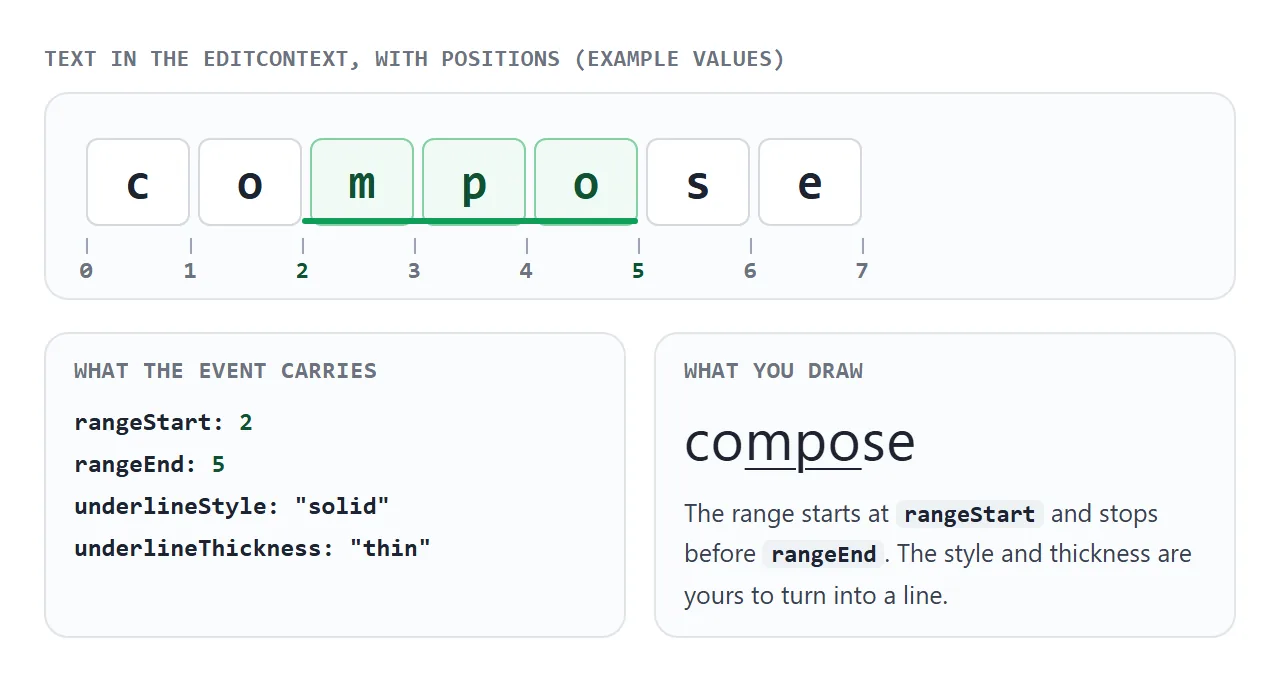
The event does not draw anything. The names solid, dotted, dashed and wavy are also CSS text-decoration-style values, but how you turn style and thickness into a line is your choice.
You cannot make an IME on demand, so the next example fakes one. It builds a TextFormat by hand from the controls and draws it with the same code a real listener would use.
<!doctype html>
<html lang="en">
<head>
<meta charset="utf-8">
<meta name="viewport" content="width=device-width, initial-scale=1">
<title>TextFormat values</title>
<style>
  body { margin: 0; padding: 16px; font-family: system-ui, sans-serif; background: #f4f5f7; color: #1d2330; }
  .preview {
    padding: 14px 16px; background: #fff; border: 2px solid #d5d9e0; border-radius: 10px;
    font-size: 26px; line-height: 1.6; min-height: 44px; white-space: pre-wrap; overflow-wrap: anywhere;
  }
  .grid { display: grid; grid-template-columns: repeat(auto-fit, minmax(120px, 1fr)); gap: 10px; margin: 14px 0; }
  label { display: block; font-size: 12.5px; font-weight: 600; color: #374151; }
  input, select {
    display: block; width: 100%; box-sizing: border-box; margin-top: 4px; padding: 7px 8px;
    font: 15px system-ui, sans-serif; border: 1px solid #c7ccd6; border-radius: 6px; background: #fff;
  }
  .wide { grid-column: 1 / -1; }
  pre {
    margin: 0; padding: 10px 12px; background: #1d2330; color: #e6edf7; border-radius: 8px;
    font: 12.5px/1.55 ui-monospace, Consolas, monospace; white-space: pre-wrap; overflow-wrap: anywhere;
  }
  small { display: block; margin-top: 8px; color: #6b7280; font-size: 12.5px; line-height: 1.45; }
</style>
</head>
<body>
<div class="preview" id="preview"></div>

<div class="grid">
  <label class="wide">Text <input id="text" value="Hello composition"></label>
  <label>rangeStart <input id="start" type="number" min="0" value="0"></label>
  <label>rangeEnd <input id="end" type="number" min="0" value="5"></label>
  <label>underlineStyle
    <select id="style"><option>solid</option><option>dotted</option><option>dashed</option><option>wavy</option><option>none</option></select>
  </label>
  <label>underlineThickness
    <select id="thick"><option>thin</option><option>thick</option><option>none</option></select>
  </label>
</div>

<pre id="code"></pre>
<small id="note"></small>

<script>
  const $ = (id) => document.getElementById(id);

  // The same drawing code a real textformatupdate handler would use
  function draw(box, text, formats) {
    box.textContent = '';
    let pos = 0;
    for (const f of formats) {
      box.append(text.slice(pos, f.rangeStart));
      const span = document.createElement('span');
      span.textContent = text.slice(f.rangeStart, f.rangeEnd);
      span.style.textDecoration = f.underlineStyle === 'none' ? 'none' : 'underline ' + f.underlineStyle;
      span.style.textDecorationThickness = f.underlineThickness === 'thick' ? '3px' : '1px';
      box.append(span);
      pos = f.rangeEnd;
    }
    box.append(text.slice(pos));
  }

  const hasTextFormat = typeof TextFormat === 'function';

  function update() {
    const text = $('text').value;
    const rangeStart = Math.min(Math.max(+$('start').value || 0, 0), text.length);
    const rangeEnd = Math.min(Math.max(+$('end').value || 0, rangeStart), text.length);
    const init = { rangeStart, rangeEnd, underlineStyle: $('style').value, underlineThickness: $('thick').value };

    // A real IME hands you TextFormat objects. Here we build one by hand.
    const format = hasTextFormat ? new TextFormat(init) : init;

    draw($('preview'), text, [format]);
    $('code').textContent = 'new TextFormat(' + JSON.stringify(init, null, 2) + ')';
    $('note').textContent = hasTextFormat
      ? 'This button panel fakes an IME: the browser did not send these formats.'
      : 'TextFormat is not available in this browser, so a plain object stands in for it.';
  }

  document.querySelectorAll('input, select').forEach((el) => el.addEventListener('input', update));
  update();
</script>
</body>
</html>
A finished example: a canvas editor
A canvas has no text input of its own, so it is the textbook case. This editor draws its text with fillText, draws a caret, and draws whatever underlines arrive in textformatupdate.
<!doctype html>
<html lang="en">
<head>
<meta charset="utf-8">
<meta name="viewport" content="width=device-width, initial-scale=1">
<title>Canvas text editor with EditContext</title>
<style>
  body { margin: 0; padding: 16px; font-family: system-ui, sans-serif; background: #f4f5f7; color: #1d2330; }
  canvas { display: block; width: 100%; height: 90px; background: #fff; border: 2px solid #d5d9e0; border-radius: 10px; box-sizing: border-box; }
  canvas:focus { outline: none; border-color: #2563eb; }
  p { font-size: 13.5px; line-height: 1.5; margin: 12px 0 0; }
  pre {
    margin: 10px 0 0; padding: 10px 12px; background: #1d2330; color: #e6edf7; border-radius: 8px;
    font: 12.5px/1.55 ui-monospace, Consolas, monospace; white-space: pre-wrap; overflow-wrap: anywhere;
  }
</style>
</head>
<body>
<canvas id="c"></canvas>
<p id="msg">Click the canvas and type. Left and right arrows move the caret.</p>
<pre id="info"></pre>

<script>
  const canvas = document.getElementById('c');
  const info = document.getElementById('info');
  const g = canvas.getContext('2d');
  const SIZE = 28, X = 14, Y = 52;
  let formats = [];

  if (!('EditContext' in window)) {
    document.getElementById('msg').textContent = 'This browser has no EditContext, so this editor cannot run here.';
  } else {
    const ec = new EditContext();
    canvas.editContext = ec;  // a canvas has no text input of its own; this gives it one

    const widthOf = (s) => g.measureText(s).width;

    function draw() {
      g.clearRect(0, 0, canvas.width, canvas.height);
      g.font = SIZE + 'px system-ui, sans-serif';
      g.fillStyle = '#1d2330';
      g.strokeStyle = '#1d2330';
      g.fillText(ec.text, X, Y);

      // Underlines the IME asked for
      for (const f of formats) {
        if (f.underlineStyle === 'none') continue;
        const x1 = X + widthOf(ec.text.slice(0, f.rangeStart));
        const x2 = X + widthOf(ec.text.slice(0, f.rangeEnd));
        g.lineWidth = f.underlineThickness === 'thick' ? 3 : 1;
        g.setLineDash(f.underlineStyle === 'dotted' ? [2, 3] : f.underlineStyle === 'dashed' ? [8, 4] : []);
        g.beginPath();
        g.moveTo(x1, Y + 5);
        if (f.underlineStyle === 'wavy') {
          for (let x = x1 + 3, up = false; x < x2; x += 3, up = !up) g.lineTo(x, Y + (up ? 5 : 8));
        }
        g.lineTo(x2, Y + 5);
        g.stroke();
        g.setLineDash([]);
      }

      // Caret
      if (document.activeElement === canvas) {
        const cx = X + widthOf(ec.text.slice(0, ec.selectionEnd));
        g.fillRect(cx, Y - SIZE + 4, 2, SIZE);
      }
      tellOS();
    }

    // Tell the OS where the editor and caret are, so an IME window opens next to them
    function tellOS() {
      const box = canvas.getBoundingClientRect();
      const cx = box.left + X + widthOf(ec.text.slice(0, ec.selectionEnd));
      ec.updateControlBounds(box);
      ec.updateSelectionBounds(DOMRect.fromRect({ x: cx, y: box.top + Y - SIZE, width: 1, height: SIZE + 6 }));
    }

    function resize() {
      const dpr = window.devicePixelRatio || 1;
      canvas.width = Math.round(canvas.clientWidth * dpr);
      canvas.height = Math.round(canvas.clientHeight * dpr);
      g.setTransform(dpr, 0, 0, dpr, 0, 0);
      draw();
    }

    ec.addEventListener('textupdate', () => { formats = []; draw(); });
    ec.addEventListener('textformatupdate', (e) => {
      formats = e.getTextFormats();
      info.textContent = 'textformatupdate: ' + formats.length + ' format(s)';
      draw();
    });
    ec.addEventListener('characterboundsupdate', (e) => {
      const box = canvas.getBoundingClientRect();
      const rects = [];
      for (let i = e.rangeStart; i < e.rangeEnd; i++) {
        rects.push(DOMRect.fromRect({
          x: box.left + X + widthOf(ec.text.slice(0, i)), y: box.top + Y - SIZE,
          width: widthOf(ec.text.charAt(i)), height: SIZE + 6,
        }));
      }
      ec.updateCharacterBounds(e.rangeStart, rects);
    });

    // Arrow keys are not moved for you: update the selection yourself
    canvas.addEventListener('keydown', (e) => {
      const to = e.key === 'ArrowLeft' ? ec.selectionEnd - 1 : e.key === 'ArrowRight' ? ec.selectionEnd + 1 : null;
      if (to === null) return;
      const pos = Math.min(Math.max(to, 0), ec.text.length);
      ec.updateSelection(pos, pos);
      draw();
    });
    canvas.addEventListener('focus', draw);
    canvas.addEventListener('blur', draw);
    window.addEventListener('resize', resize);
    resize();
  }
</script>
</body>
</html>
- Draw the text: clear the canvas and call
fillTextwithctx.texton everytextupdate. - Draw the underlines: measure the text before
rangeStartandrangeEndwithmeasureText, then stroke a line between the two x positions. - Move the caret yourself: this editor handles the left and right arrow keys and calls
updateSelection(). - Tell the OS where you are:
updateControlBounds()andupdateSelectionBounds()position the IME window, andcharacterboundsupdateasks for per-character rectangles.
For the drawing side, see drawing on a canvas. If the text looks soft on a high-density screen, blurry canvas explains the scaling used in the example.
Check support before you use it
Because the API is experimental, test for it first and keep a fallback:
if (!('EditContext' in window)) {
  // fall back to a textarea or a contenteditable element
}
Each demo on this page checks for the API it needs and prints a message instead of failing. If both EditContext and contenteditable are set on an element, the spec says the EditContext behavior wins.
Outlook's TextFormat versus this event
The two share a word and nothing else.
| Outlook (VBA) | Browser (JavaScript) | |
|---|---|---|
| Name | MailItem.BodyFormat |
textformatupdate |
| What it does | Sets the body format: Plain, Rich Text or HTML | Reports which text to underline during IME composition |
| Runs in | Outlook | A web page |
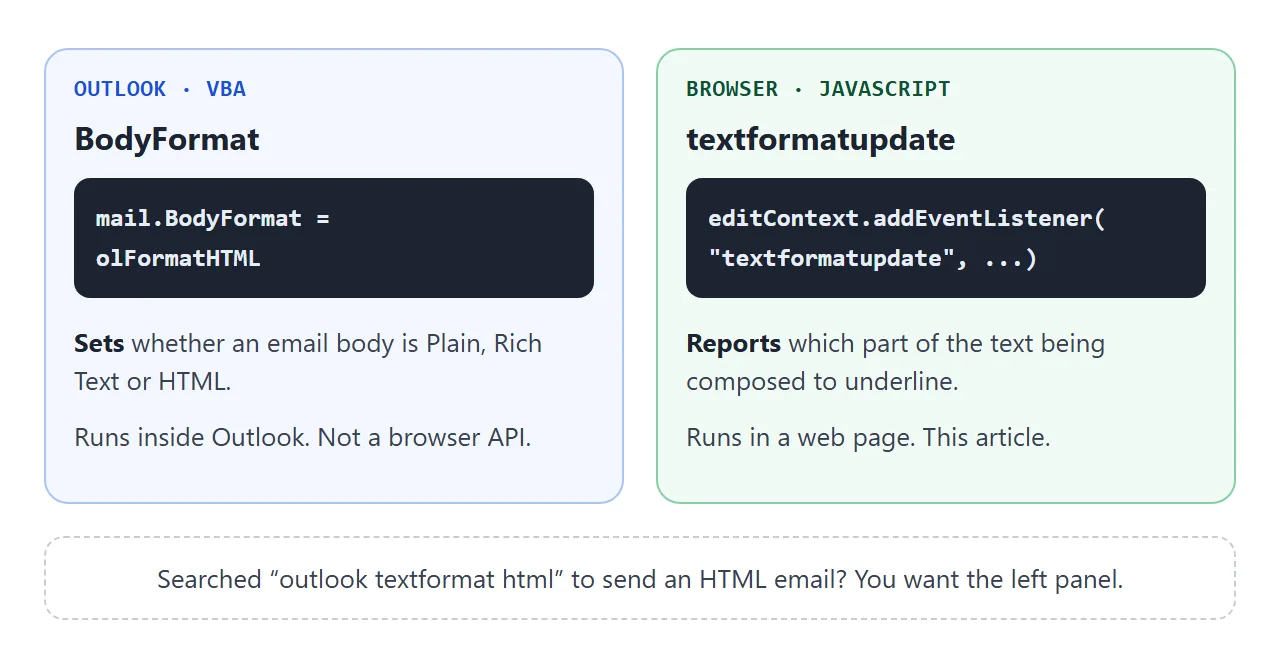
To send an HTML email from Outlook, read Send HTML email in Outlook. If the result looks wrong once it arrives, HTML not displaying correctly in Outlook covers it.
When it does not work
| What you see | Cause | Fix |
|---|---|---|
| The event never fires while you type | A plain keyboard does not compose through an IME | Test with an IME, or fake formats as in the second example |
EditContext is not defined |
The browser has no EditContext | Feature-check and fall back to a textarea |
NotSupportedError on assignment |
The element type cannot hold an EditContext | Use a div, a canvas or another listed element |
| Typing changes nothing on screen | The browser does not update the DOM for you | Redraw from ctx.text in textupdate |
| The IME window opens far from the text | The OS was not told where the text is | Call updateControlBounds and updateSelectionBounds |
| The arrow keys do not move the caret | You draw the selection yourself | Call updateSelection and redraw |
| An error when attaching to a second element | One EditContext belongs to one element | Create one EditContext per element |
Share it as a link
An editor that reacts to typing is easier to show than to describe. A screenshot cannot be typed into.
To send the working version, paste the page into a NOS document and choose Create share link. HTML to link walks through it.
The page renders as written and its scripts run, so the people you send it to can type in the box themselves. If you change the code later, the same link shows the new version.