Sharing a Jupyter notebook as a link means publishing its rendered output as a page, so anyone can see the analysis without installing Python or resolving your dependencies.
A notebook is two things at once: a program and a document. The file is good at the first and poor at the second.
This guide covers what the export preserves, the interactivity question, whether to include code, and the credentials check that should come before any of it.
What the file asks of the recipient
| Step | With the .ipynb | With a link |
|---|---|---|
| Opening it | Needs Jupyter or a viewer | Opens |
| Seeing the charts | Run the cells | Already there |
| Matching your environment | Resolve dependencies | Not needed |
| On a phone | Effectively impossible | Fine |
| Six months later | Dependencies have moved | Unchanged |
The last row is the quiet one. A notebook that ran in March often does not run in September, because a library moved a function or a data source changed shape. The rendered output does not have that problem: it is a record of what the analysis said at the time.
Outputs are stored, so run everything first
This causes more confusion than any other part.
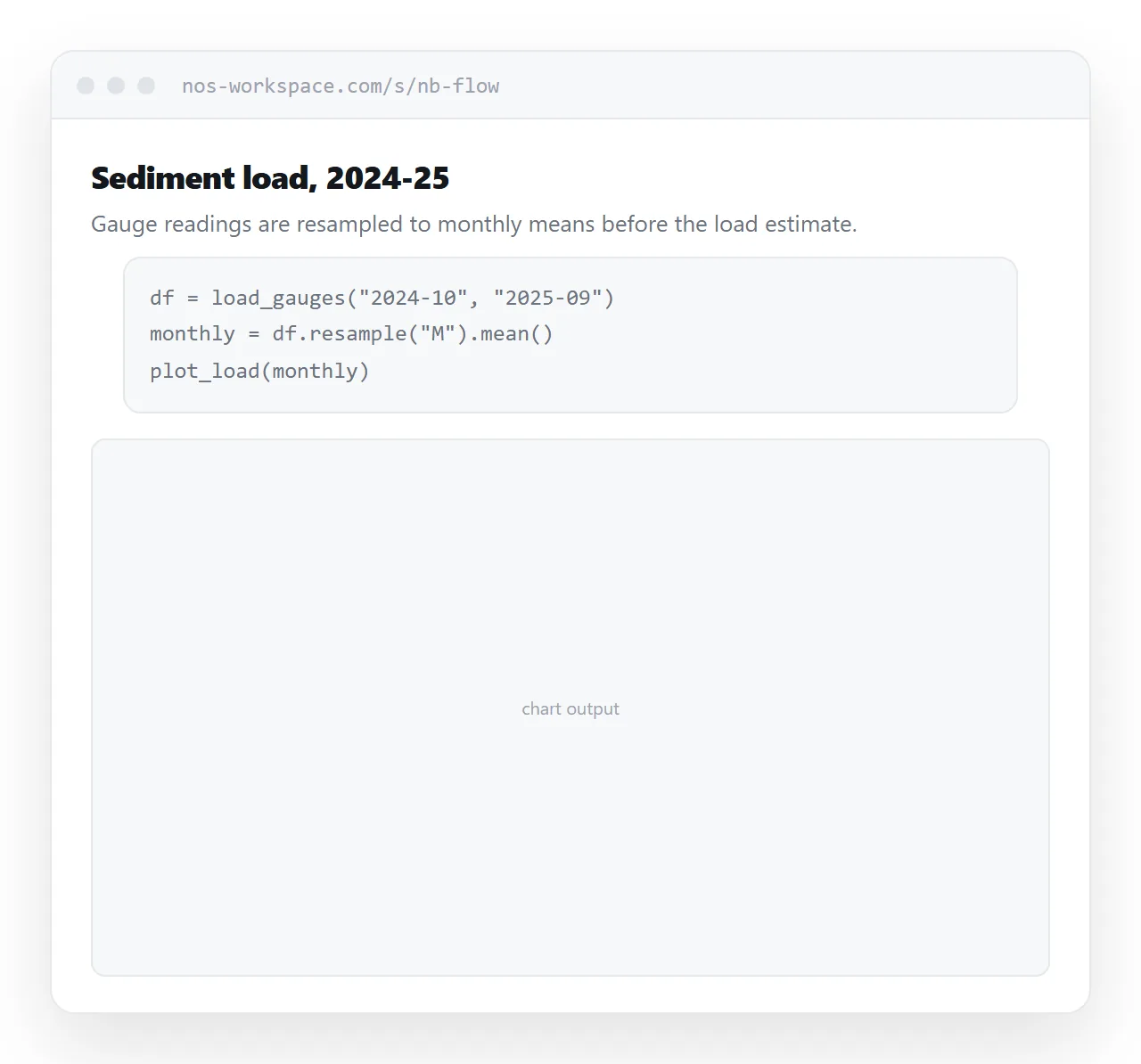
A notebook stores the output of each cell alongside the code. The export uses what is stored; it does not re-run anything. So a cell you edited but never re-ran exports with its old output, and the page shows a chart that does not match the code above it.
Run every cell top to bottom before exporting. If the notebook cannot be run cleanly from a fresh kernel, the page will contain a result nobody can reproduce, which is worse than no page.
Interactivity, honestly
Static outputs carry across. Charts saved as images, rendered tables, and printed text all appear exactly as they did.
Interactive output splits in two.
Plots that compile to self-contained JavaScript keep working, including zoom, hover and tooltips. That covers most current plotting libraries, and the pages get large but they function.
Anything that needs a live Python process for each interaction stops. Sliders that recompute, widgets that query a dataframe, progress bars: all of those render in their last state and do nothing when clicked. That is not a failure of the export, it is the absence of a kernel.
If the interaction is the point, a page is the wrong medium and you want a hosted app instead.
Code in or out
Two legitimate documents come from the same notebook.
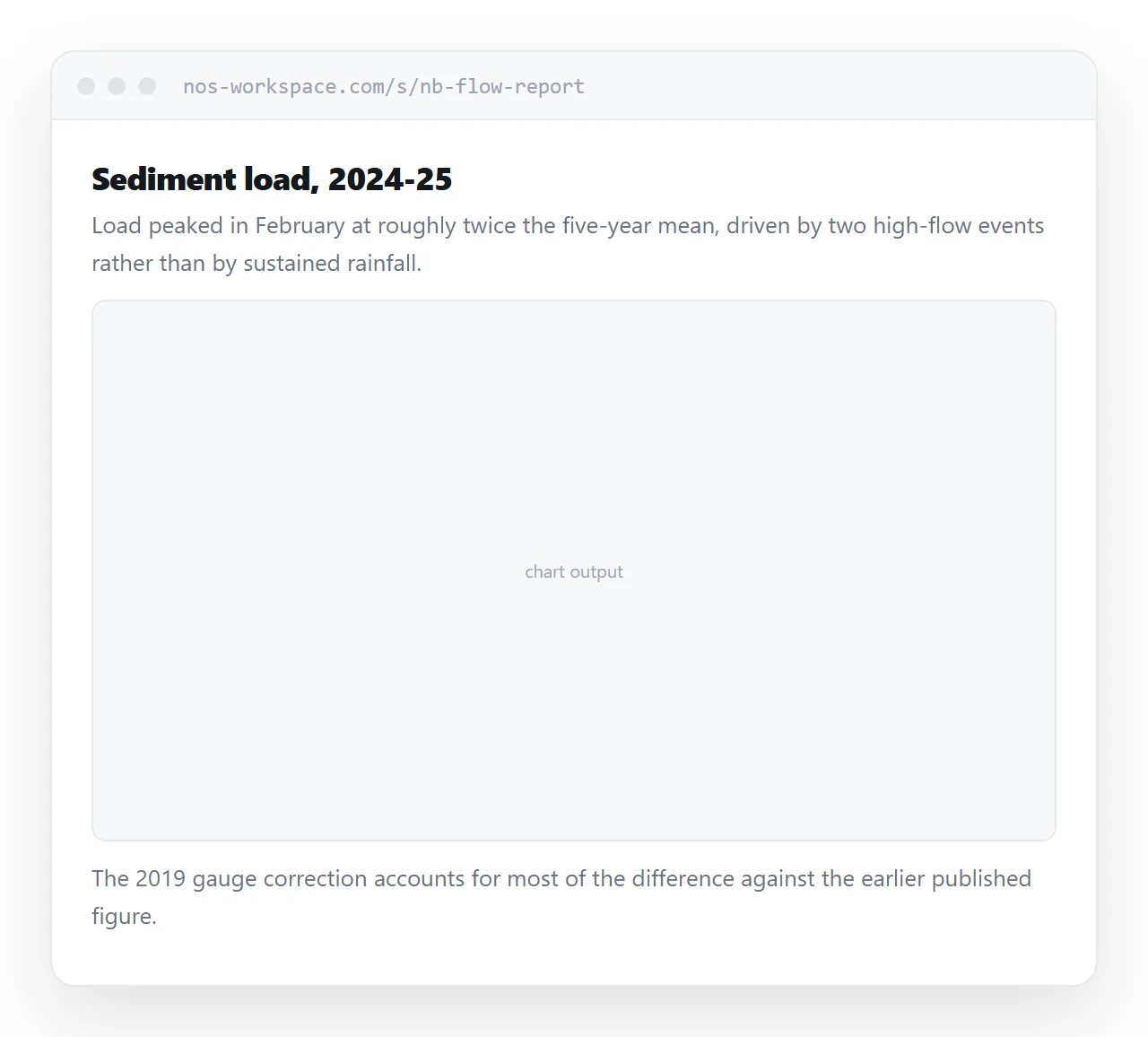
Hiding the input cells produces a report: prose, tables and charts, reading like a written analysis. That is what you send to someone who wants the conclusion.
Keeping them produces a method record: every transformation visible, reproducible by anyone who wants to check. That is what you send to a colleague reviewing the work.
Do not try to serve both with one page. The report reads badly when interrupted by twelve lines of dataframe manipulation, and the method record is useless with the code removed.
Check for credentials before publishing
Notebooks collect secrets in ways that are easy to miss.
- Connection strings in a cell you meant to parameterise later.
- Tokens in stored output, because the cell printed a response that included one.
- File paths revealing internal structure, share names or client names.
- Query text containing identifiers you would not publish.
- Error tracebacks that print an environment variable.
The output case is the one people miss: clearing the input cell does not clear what it already printed. Search the exported file for likely patterns before it goes anywhere.
Large outputs
Notebooks with many high-resolution charts export to very large pages. A forty-chart analysis can run to tens of megabytes, which defeats the purpose.
Reduce the figure resolution for a shared page rather than shipping print-quality plots. Screen display needs far less than you would set for a paper, and the difference in file size is substantial.
When to send the file
Send the .ipynb to someone who will run it: a collaborator extending the analysis, a reviewer reproducing a result, a colleague adapting the method.
Pair it with the environment specification, because a notebook without one is an unreproducible artefact regardless of format. If the work lives in a repository, sharing the repository is usually better than sending a single file.
Put it at an address
Run every cell, decide whether the code belongs, check for credentials, and create a share link.
The recipient sees your analysis in a browser, on whatever device they have, with nothing installed.