A <path> inside an inline <svg> draws any shape you can describe with a d string. In JavaScript that element is an SVGPathElement, a DOM interface (not an event).
Its two most useful methods are getTotalLength(), how long the path is, and getPointAtLength(), where the point at a given distance sits.
Try it. Drag the slider and the dot rides the curve.
<!doctype html>
<html lang="en">
<head>
<meta charset="utf-8">
<meta name="viewport" content="width=device-width, initial-scale=1">
<title>SVG path element in JavaScript</title>
<style>
  body { margin: 0; padding: 14px; font-family: system-ui, sans-serif; background: #f4f5f7; color: #1d2330; }
  svg { display: block; width: 100%; max-width: 480px; background: #fff; border-radius: 12px; box-shadow: 0 2px 10px rgba(0, 0, 0, .08); }
  #track { fill: none; stroke: #2563eb; stroke-width: 4; stroke-linecap: round; }
  #dot { fill: #f97316; stroke: #fff; stroke-width: 2; }
  label { display: block; margin: 14px 0 6px; font-weight: 600; }
  input[type=range] { width: 100%; max-width: 480px; }
  output { display: block; margin-top: 8px; font: 14px/1.5 ui-monospace, Consolas, monospace; white-space: pre; }
</style>
</head>
<body>
<svg viewBox="0 0 320 160" role="img" aria-label="A curved path with a dot on it">
  <path id="track" d="M20 120 Q90 10 160 80 Q230 150 300 40"/>
  <circle id="dot" r="8" cx="20" cy="120"/>
</svg>

<label for="slider">Distance along the path</label>
<input id="slider" type="range" min="0" max="100" value="0">
<output id="out"></output>

<script>
  const path = document.getElementById('track');   // an SVGPathElement
  const dot = document.getElementById('dot');
  const slider = document.getElementById('slider');
  const out = document.getElementById('out');

  const total = path.getTotalLength();             // length in user units

  function update() {
    const dist = total * slider.value / 100;
    const p = path.getPointAtLength(dist);         // a point object with x and y
    dot.setAttribute('cx', p.x);
    dot.setAttribute('cy', p.y);
    out.textContent = 'length ' + total.toFixed(1) +
      '\ndistance ' + dist.toFixed(1) +
      '\npoint (' + p.x.toFixed(1) + ', ' + p.y.toFixed(1) + ')';
  }

  slider.addEventListener('input', update);
  update();
</script>
</body>
</html>
The dot is a plain <circle> in the same <svg>. Its cx and cy come straight from the point the path returns, so no scaling maths is needed.
What the path element is
MDN calls <path> the generic element for defining a shape, and every basic shape can be written as a path. The shape lives in one attribute, d, a string of commands and numbers.
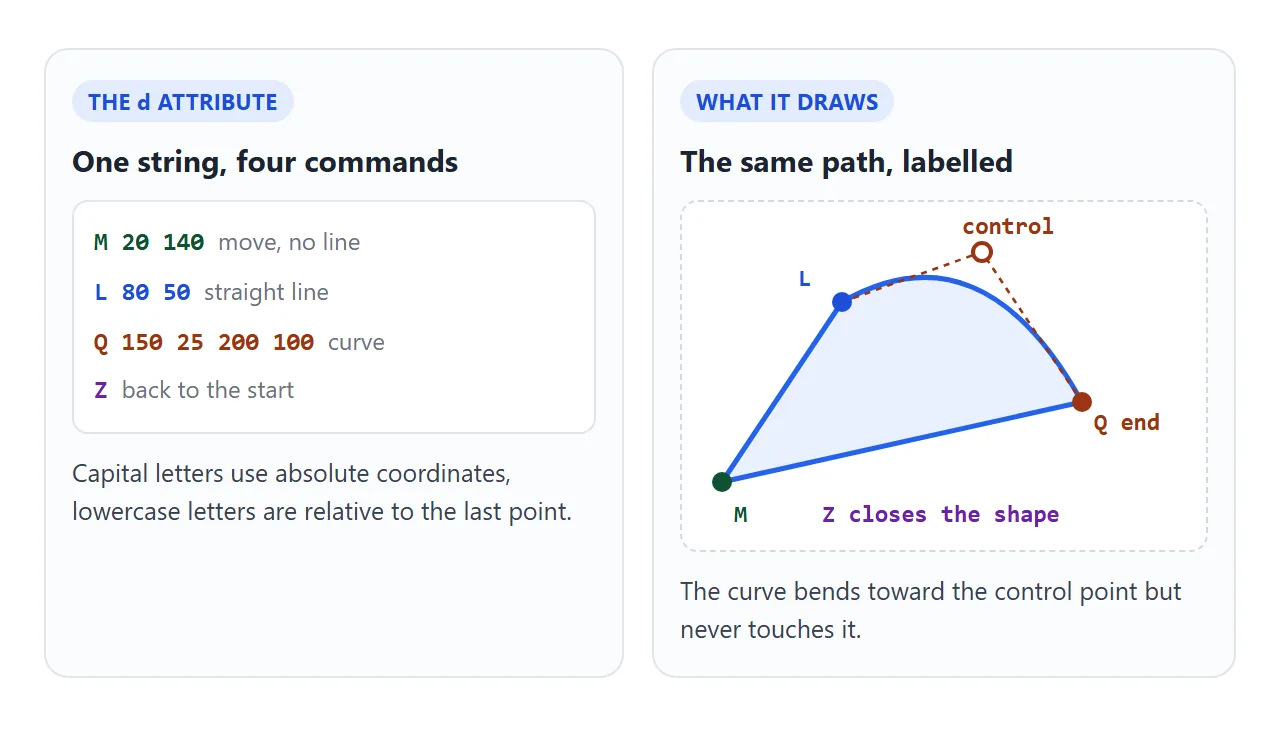
| Command | What it does | Example |
|---|---|---|
M x y |
Move to a point without drawing | M 20 140 |
L x y |
Straight line to a point | L 80 50 |
Q cx cy x y |
Curve with one control point | Q 150 25 200 100 |
C |
Curve with two control points | six numbers |
A |
Arc of a circle or ellipse | seven numbers |
Z |
Line back to the first point | no numbers |
An uppercase letter uses absolute coordinates and a lowercase letter uses coordinates relative to the last point. For Z the two cases are the same.
If you only need to put a path on a page, SVG in HTML covers the three ways to include one. This guide is about the JavaScript object.
Measure it with getTotalLength
Select the path like any element. The result is already an SVGPathElement, with no cast or wrapper:
const path = document.getElementById('track');
const total = path.getTotalLength();  // a number, in user units
User units are the numbers used in the d string, not screen pixels. A path whose d is empty, or only a single M, has length 0.
Call it once and keep the number. The drawing effect for a line that "writes itself" uses this length too, and SVG stroke-dasharray shows that technique.
Walk along it with getPointAtLength
Pass a distance from 0 to the total length. You get a point object with x and y numbers:
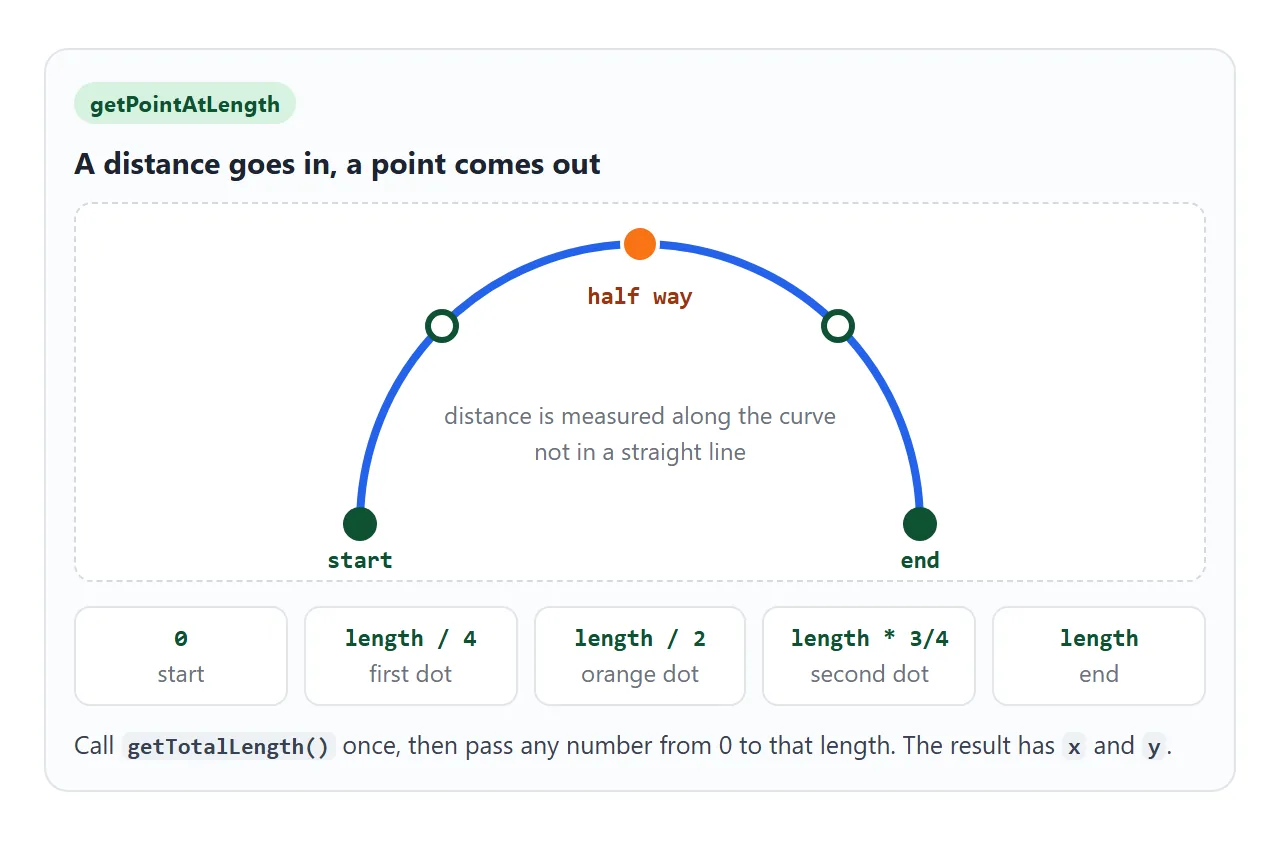
const p = path.getPointAtLength(total * 0.5);  // halfway along
dot.setAttribute('cx', p.x);
dot.setAttribute('cy', p.y);
The distance is measured along the curve, so equal steps in the number give equal steps along the line. To animate, change the distance on each frame with requestAnimationFrame and move the dot to the new point.
Keep the dot inside the same <svg> as the path. Then both use the same units and the same viewBox.
Build a path in JavaScript
Setting d is the whole job. Write the string yourself, or join pieces:
path.setAttribute('d', 'M20 120 L' + x + ' ' + y);
Creating a brand-new path is where most people get stuck. SVG elements live in their own namespace, so document.createElement('path') makes an HTML element called path, and the browser ignores it. Use createElementNS with the SVG namespace string.
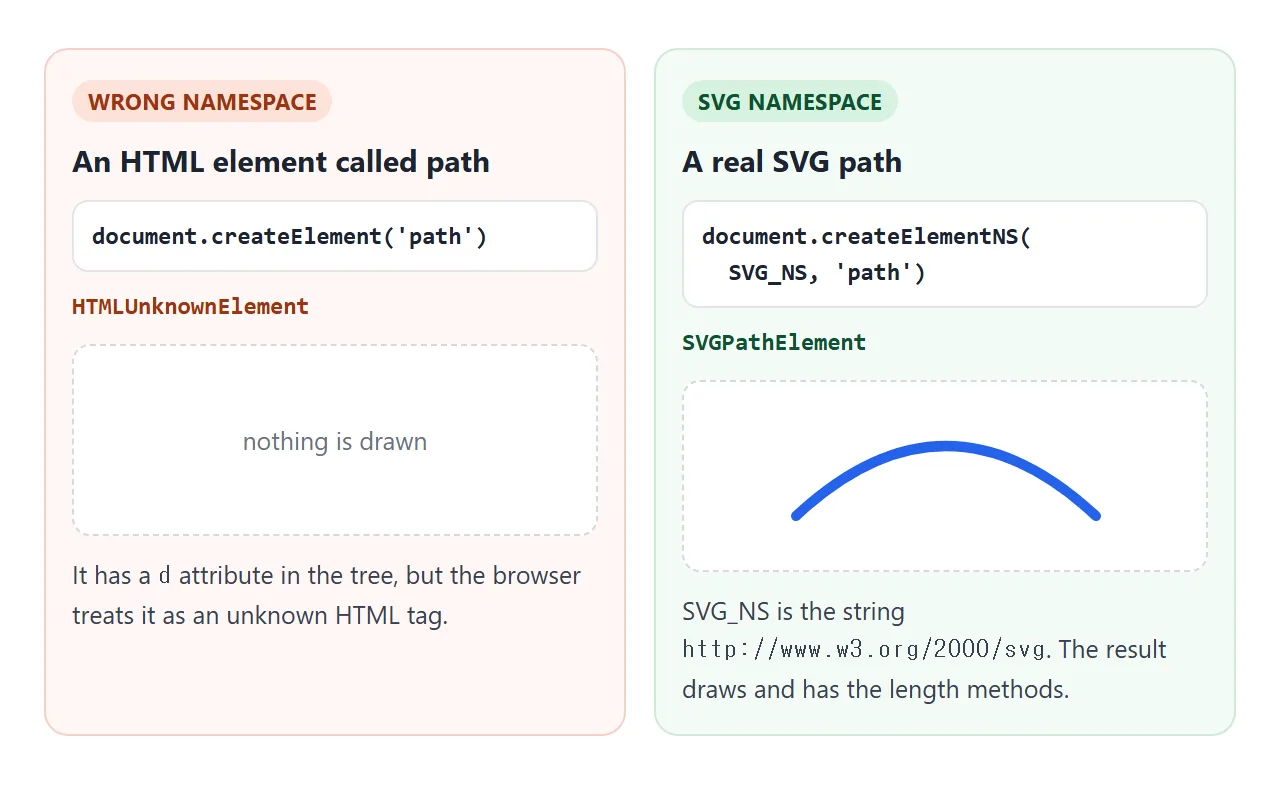
Try both and read what the browser reports:
<!doctype html>
<html lang="en">
<head>
<meta charset="utf-8">
<meta name="viewport" content="width=device-width, initial-scale=1">
<title>createElement vs createElementNS for a path</title>
<style>
  body { margin: 0; padding: 14px; font-family: system-ui, sans-serif; background: #f4f5f7; color: #1d2330; }
  svg { display: block; width: 100%; max-width: 480px; background: #fff; border-radius: 12px; box-shadow: 0 2px 10px rgba(0, 0, 0, .08); }
  .row { display: flex; flex-wrap: wrap; gap: 8px; margin: 12px 0; }
  button { font: inherit; padding: 9px 12px; border: 0; border-radius: 8px; color: #fff; cursor: pointer; }
  #bad { background: #c2410c; }
  #good { background: #0f5132; }
  #reset { background: #6b7280; }
  pre { margin: 0; padding: 10px 12px; border-radius: 8px; background: #fff; font: 13px/1.5 ui-monospace, Consolas, monospace; white-space: pre-wrap; min-height: 6.5em; }
</style>
</head>
<body>
<svg id="svg" viewBox="0 0 320 120" role="img" aria-label="An empty drawing area">
  <rect width="320" height="120" fill="#fafbfc"/>
</svg>

<div class="row">
  <button id="bad">createElement('path')</button>
  <button id="good">createElementNS(SVG_NS, 'path')</button>
  <button id="reset">Reset</button>
</div>
<pre id="log">Press a button to add a path.</pre>

<script>
  const svg = document.getElementById('svg');
  const log = document.getElementById('log');
  const SVG_NS = 'http://www.w3.org/2000/svg';

  function add(el, color, y) {
    el.setAttribute('d', 'M20 ' + y + ' Q160 ' + (y - 40) + ' 300 ' + y);
    el.setAttribute('fill', 'none');
    el.setAttribute('stroke', color);
    el.setAttribute('stroke-width', '6');
    el.setAttribute('stroke-linecap', 'round');
    svg.appendChild(el);
    log.textContent =
      'constructor: ' + el.constructor.name + '\n' +
      'instanceof SVGPathElement: ' + (el instanceof SVGPathElement) + '\n' +
      'has getTotalLength: ' + (typeof el.getTotalLength === 'function') + '\n' +
      'drawn: ' + (el instanceof SVGPathElement ? 'yes' : 'no, the browser ignores it');
  }

  // wrong: this makes an HTML element named "path"
  document.getElementById('bad').addEventListener('click', () => {
    add(document.createElement('path'), '#c2410c', 50);
  });

  // right: the SVG namespace makes a real SVGPathElement
  document.getElementById('good').addEventListener('click', () => {
    add(document.createElementNS(SVG_NS, 'path'), '#0f5132', 95);
  });

  document.getElementById('reset').addEventListener('click', () => {
    svg.querySelectorAll('path').forEach((p) => p.remove());
    log.textContent = 'Press a button to add a path.';
  });
</script>
</body>
</html>
The namespace string is http://www.w3.org/2000/svg. Keep it in a constant, as the example does, so you type it once.
A finished example: draw a path, then walk it
This version builds the d string from pointer movement. pointerdown starts with M, each pointermove appends an L, and the total length updates after every segment. Press Walk and the dot follows what you drew.
<!doctype html>
<html lang="en">
<head>
<meta charset="utf-8">
<meta name="viewport" content="width=device-width, initial-scale=1">
<title>Draw a path, then walk along it</title>
<style>
  body { margin: 0; padding: 14px; font-family: system-ui, sans-serif; background: #f4f5f7; color: #1d2330; }
  svg {
    display: block; width: 100%; max-width: 480px; background: #fff; border-radius: 12px;
    box-shadow: 0 2px 10px rgba(0, 0, 0, .08); cursor: crosshair;
    touch-action: none;   /* a finger draws instead of scrolling the page */
  }
  #line { fill: none; stroke: #2563eb; stroke-width: 4; stroke-linecap: round; stroke-linejoin: round; }
  #dot { fill: #f97316; stroke: #fff; stroke-width: 2; }
  .row { display: flex; flex-wrap: wrap; align-items: center; gap: 8px; margin: 12px 0; }
  button { font: inherit; padding: 9px 14px; border: 0; border-radius: 8px; background: #1d4ed8; color: #fff; cursor: pointer; }
  button.alt { background: #6b7280; }
  button:disabled { opacity: .45; cursor: default; }
  #info { font: 14px ui-monospace, Consolas, monospace; }
  .hint { margin: 0; font-size: 14px; color: #4b5563; }
</style>
</head>
<body>
<svg id="pad" viewBox="0 0 320 220" role="img" aria-label="Drawing area">
  <path id="line" d=""/>
  <circle id="dot" r="8" cx="-20" cy="-20"/>
</svg>

<div class="row">
  <button id="walk" disabled>Walk</button>
  <button id="clear" class="alt">Clear</button>
  <span id="info">length 0</span>
</div>
<p class="hint">Drag inside the box to draw, then press Walk.</p>

<script>
  const pad = document.getElementById('pad');
  const line = document.getElementById('line');
  const dot = document.getElementById('dot');
  const walk = document.getElementById('walk');
  const info = document.getElementById('info');

  let d = '', last = null, drawing = false, raf = 0;

  // turn a pointer position into SVG user units (the viewBox is 320 wide)
  function toSvg(e) {
    const r = pad.getBoundingClientRect();
    const k = 320 / r.width;
    return { x: (e.clientX - r.left) * k, y: (e.clientY - r.top) * k };
  }

  function refresh() {
    line.setAttribute('d', d);
    const len = line.getTotalLength();
    info.textContent = 'length ' + len.toFixed(0);
    walk.disabled = len === 0;
  }

  pad.addEventListener('pointerdown', (e) => {
    cancelAnimationFrame(raf);
    pad.setPointerCapture(e.pointerId);
    drawing = true;
    last = toSvg(e);
    d = 'M' + last.x.toFixed(1) + ' ' + last.y.toFixed(1);   // start a new path
    dot.setAttribute('cx', -20);
    refresh();
  });

  pad.addEventListener('pointermove', (e) => {
    if (!drawing) return;
    const p = toSvg(e);
    if (Math.hypot(p.x - last.x, p.y - last.y) < 3) return;  // skip tiny moves
    d += ' L' + p.x.toFixed(1) + ' ' + p.y.toFixed(1);
    last = p;
    refresh();
  });

  pad.addEventListener('lostpointercapture', () => { drawing = false; });

  walk.addEventListener('click', () => {
    cancelAnimationFrame(raf);
    const len = line.getTotalLength();
    const speed = 160;                       // user units per second
    const t0 = performance.now();
    (function step(now) {
      const dist = Math.min(len, (now - t0) / 1000 * speed);
      const p = line.getPointAtLength(dist); // where the dot goes
      dot.setAttribute('cx', p.x);
      dot.setAttribute('cy', p.y);
      if (dist < len) raf = requestAnimationFrame(step);
    })(t0);
  });

  document.getElementById('clear').addEventListener('click', () => {
    cancelAnimationFrame(raf);
    d = '';
    dot.setAttribute('cx', -20);
    refresh();
  });
</script>
</body>
</html>
Three details make it work on a phone and on a scaled drawing:
- Convert coordinates. The pointer gives screen pixels. Divide by the box width and multiply by the
viewBoxwidth to get user units. - Stop the page scrolling.
touch-action: noneon the<svg>lets a finger draw. Pointer events explains the rest of that code. - Handle length 0. The Walk button stays disabled until the path has a segment.
What else the path object offers
SVGPathElement inherits more from SVGGeometryElement. isPointInFill() and isPointInStroke() test whether a point lies inside the fill or on the stroke, using the element's pointer-events value. pathLength is a read-only property that reflects the pathLength attribute.
The old createSVGPathSeg methods were removed in SVG 2, so build paths by writing the d string. MDN lists getTotalLength() and getPointAtLength() as widely available across browsers.
When it does not work
| What you see | Cause | Fix |
|---|---|---|
getTotalLength is not a function |
The variable is not an SVG path, for example null or a <div> |
Check the id and that the script runs after the element exists |
| A path made in JavaScript is invisible | Made with createElement, so it is an HTML element |
Use createElementNS with the SVG namespace |
| The length is 0, or an error says the path is empty | d is empty or has only an M |
Add at least one L, Q or other segment |
| The dot is not on the line | The dot is in another element or another coordinate system | Put the dot in the same <svg> and set cx and cy |
Nothing shows even with a valid d |
The path has no stroke and its fill is none | Set stroke and stroke-width |
| Drawing stops on a phone | The finger is scrolling the page | touch-action: none on the <svg> |
createSVGPathSeg is missing |
Those methods were removed in SVG 2 | Set the d attribute instead |
Share it as a link
A path you can measure and walk is better seen than described. A screenshot cannot move the dot, and an .html attachment may open as plain code on a phone. Opening an HTML file on a phone covers why.
To send the working version, paste the page into a NOS document and choose Create share link. HTML to link walks through it.
The page renders as written and its scripts run, so the people you send it to can draw and press Walk themselves. If you change the code later, the same link shows the new version.