The <head> element holds information about the page: the text encoding, the title in the tab, the phone layout setting, the search description, and the stylesheets and scripts to load. Nothing inside it is displayed. It sits between <html> and <body>, once per page.
Try it first. This page reads its own head with JavaScript and lists every element in it. The buttons change the title and the theme colour while the page is open.
<!doctype html>
<html lang="en">
<head>
<meta charset="utf-8">
<meta name="viewport" content="width=device-width, initial-scale=1">
<title>Head inspector</title>
<meta name="description" content="A page that reads its own head.">
<meta name="theme-color" content="#2563eb">
<meta property="og:title" content="Head inspector">
<link rel="icon" href="data:image/svg+xml,%3Csvg xmlns='http://www.w3.org/2000/svg' viewBox='0 0 16 16'%3E%3Ccircle cx='8' cy='8' r='7' fill='%232563eb'/%3E%3C/svg%3E">
<style>
  body { margin: 0; padding: 14px; font-family: system-ui, sans-serif; background: #f4f5f7; color: #1d2330; }
  .bar { display: flex; gap: 8px; flex-wrap: wrap; margin-bottom: 10px; }
  button { font: inherit; font-size: 14px; padding: 7px 12px; border: 1px solid #c9ced8; border-radius: 8px; background: #fff; cursor: pointer; }
  .now { background: #fff; border-radius: 10px; padding: 10px 12px; margin-bottom: 10px; font-size: 14px; line-height: 1.6; }
  .swatch { display: inline-block; width: 14px; height: 14px; border-radius: 4px; vertical-align: -2px; }
  ol { background: #fff; border-radius: 10px; margin: 0; padding: 10px 12px 10px 34px; font: 12.5px/1.6 ui-monospace, Consolas, monospace; }
  li { overflow-wrap: anywhere; }
  li span { color: #6b7280; }
</style>
<script>
  // a script in the head runs before the body exists
  document.documentElement.classList.add('js');
</script>
</head>
<body>
<div class="bar">
  <button id="rename">Change title</button>
  <button id="recolor">Change theme-color</button>
</div>
<div class="now">
  <b>document.title:</b> <span id="title"></span><br>
  <b>theme-color:</b> <span class="swatch" id="swatch"></span> <span id="color"></span>
</div>
<ol id="list"></ol>

<script>
  const meta = document.querySelector('meta[name="theme-color"]');
  const list = document.getElementById('list');

  // One line of text for each kind of head element
  function describe(el) {
    switch (el.tagName) {
      case 'META': return el.hasAttribute('charset') ? 'charset=' + el.getAttribute('charset')
        : (el.name || el.getAttribute('property')) + ' = ' + el.content;
      case 'TITLE': return el.textContent;
      case 'LINK': return 'rel=' + el.rel;
      case 'STYLE': return el.textContent.length + ' characters of CSS';
      case 'SCRIPT': return el.src ? 'src=' + el.src : 'inline script';
      default: return '';
    }
  }

  function render() {
    document.getElementById('title').textContent = document.title;
    document.getElementById('color').textContent = meta.content;
    document.getElementById('swatch').style.background = meta.content;
    list.textContent = '';
    for (const el of document.head.children) {  // everything inside <head>, in order
      const li = document.createElement('li');
      li.innerHTML = '<b></b> <span></span>';
      li.firstChild.textContent = '<' + el.tagName.toLowerCase() + '>';
      li.lastChild.textContent = describe(el);
      list.append(li);
    }
  }

  let n = 1;
  document.getElementById('rename').addEventListener('click', () => {
    document.title = 'Renamed ' + n++;  // rewrites the text of the <title> element
    render();
  });

  const colors = ['#2563eb', '#16a34a', '#ea580c', '#9333ea'];
  document.getElementById('recolor').addEventListener('click', () => {
    meta.content = colors[(colors.indexOf(meta.content) + 1) % colors.length];
    render();
  });

  render();
</script>
</body>
</html>
document.title reads and writes the text of the <title> element. Any meta tag can be changed the same way, by setting its content. In browsers that use theme-color, such as some phone browsers, the address bar colour follows the change.
What goes in the head
These are the elements the head is meant for. Everything else, headings, paragraphs, images, buttons, belongs in the body.
| Element | What it does |
|---|---|
<meta charset="utf-8"> |
Tells the browser how to turn the file's bytes into characters |
<meta name="viewport"> |
Makes phones lay out the page at the screen's real width |
<title> |
The text in the tab, bookmarks and search results |
<meta name="description"> |
A summary search engines may show under the title |
<meta property="og:..."> |
The title, text and image of a link preview in chat apps |
<link rel="stylesheet"> |
Loads a CSS file |
<link rel="icon"> |
The small icon in the tab |
<style> |
CSS written directly in the page |
<script> |
JavaScript, inline or from a file |
<base> |
Sets the starting address for every relative link on the page |
The individual tags each have their own page here. The HTML meta tags list covers which meta tags still do something, and Open Graph tags covers link previews. This page is about the head as a container: what it accepts, and in what order.
<base> is the one to use carefully. Only the first <base href> counts, and it changes where every relative link, image and stylesheet on the page points. Leave it out unless you need it.
The order that matters
Most head elements can appear in any order. Three positions matter.
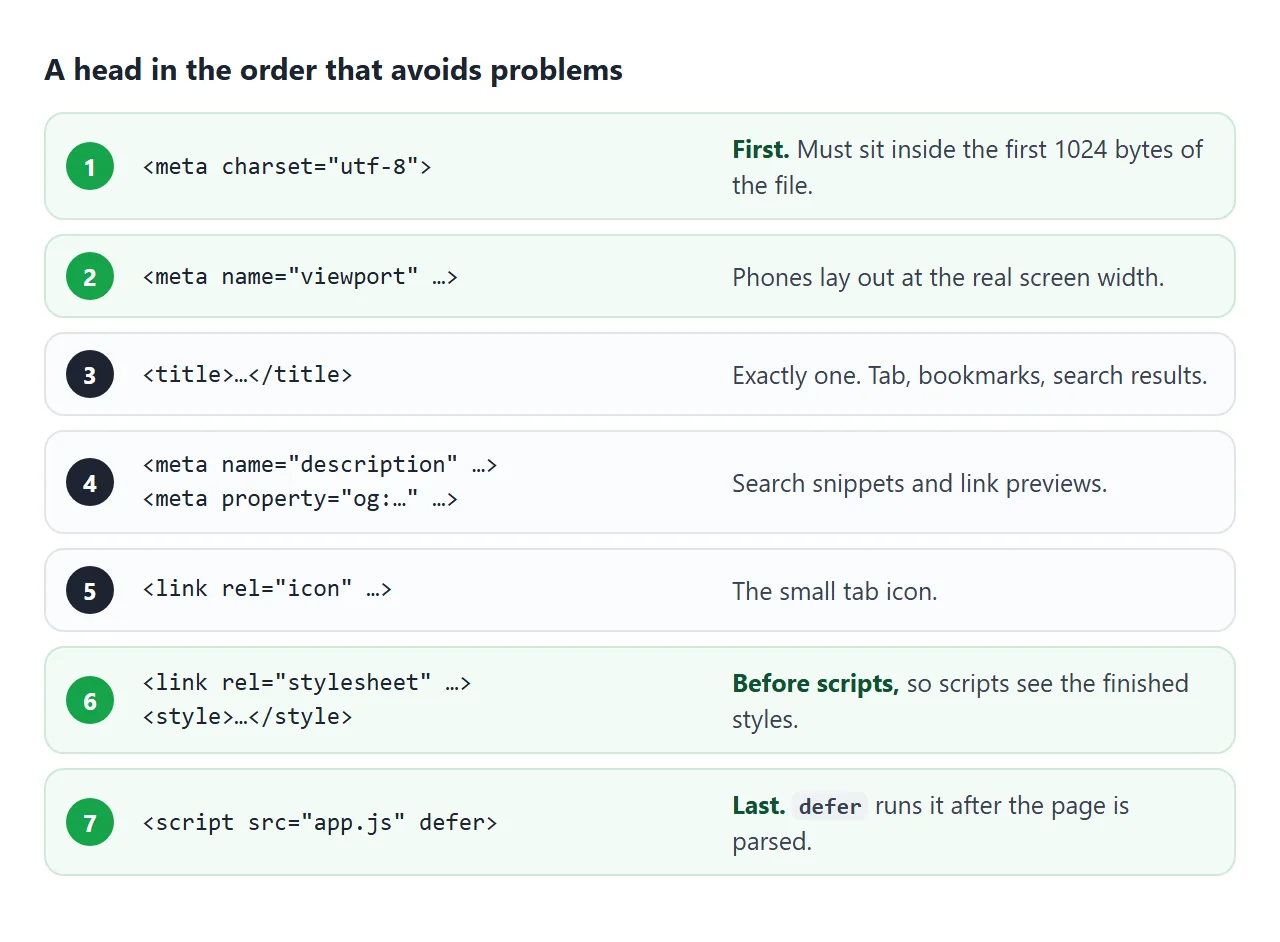
- Charset first. The HTML standard requires
<meta charset>to sit inside the first 1024 bytes of the file. Put it on the first line of the head and it always does. - Styles before scripts. A script that measures elements or reads computed styles needs the CSS applied first. Browsers make a script wait for stylesheets listed above it, so a script below the CSS sees the finished styles.
- Scripts with
defer. A plain<script src>in the head stops the parser until the file downloads and runs. Withdefer, the file downloads in the background and runs after the whole page is parsed, in the order written.
defer only works on scripts with a src. On an inline <script> it is ignored, and the code runs straight away, before the body exists. That is why the inline script in the first example is at the end of the body.
head vs header
The names are close, and they are often mixed up. They are unrelated elements.
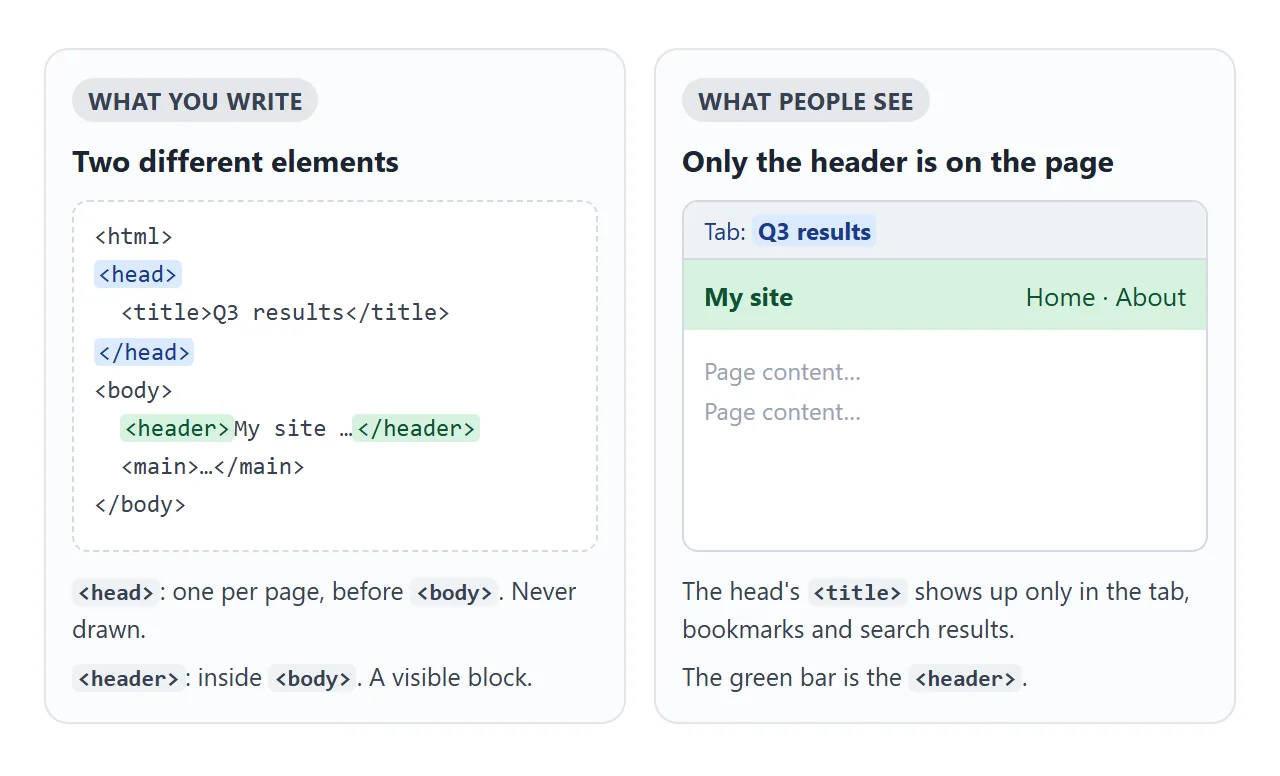
<head>comes before<body>, appears once, and is never drawn.<header>goes inside<body>. It is a visible block, usually a logo and a menu. A page can have several, for example one per article.
This page has both. The dark bar is its <header>. The grey box prints what the browser put in its <head>.
<!doctype html>
<html lang="en">
<head>
<meta charset="utf-8">
<meta name="viewport" content="width=device-width, initial-scale=1">
<title>Head vs header</title>
<meta name="description" content="The head is for the browser. The header is for people.">
<style>
body { margin: 0; font-family: system-ui, sans-serif; background: #f4f5f7; color: #1d2330; }
header { background: #1d2330; color: #fff; padding: 14px 16px; display: flex; justify-content: space-between; align-items: center; gap: 10px; flex-wrap: wrap; }
header b { font-size: 17px; }
header nav a { color: #cbd5e1; margin-left: 12px; font-size: 14px; text-decoration: none; }
main { padding: 14px 16px; }
.panel { background: #fff; border-radius: 10px; padding: 10px 12px; margin-bottom: 10px; font-size: 14px; line-height: 1.5; }
.panel h3 { margin: 0 0 6px; font-size: 14px; }
pre { margin: 0; font: 12px/1.5 ui-monospace, Consolas, monospace; white-space: pre-wrap; overflow-wrap: anywhere; color: #374151; }
.warn { border-left: 4px solid #ea580c; }
</style>
<!-- Deliberately wrong: a visible element written inside head -->
<p id="stray">This paragraph was written inside <head>.</p>
</head>
<body>
<header>
<b>My site</b>
<nav><a href="#">Home</a><a href="#">About</a></nav>
</header>
<main>
<div class="panel">
<h3>Above: <header></h3>
A visible bar inside <body>, usually the logo and menu.
</div>
<div class="panel">
<h3>Not shown: <head></h3>
<pre id="head"></pre>
</div>
<div class="panel warn">
<h3>The stray paragraph</h3>
<span id="where"></span>
</div>
</main>
<script>
// Print what the browser actually put inside <head>
document.getElementById('head').textContent = [...document.head.children]
.map((el) => el.outerHTML.replace(/>[^<]{60,}</, '>...<')) // shorten the CSS
.join('\n');
// Where did the <p> from the head end up?
const p = document.getElementById('stray');
document.getElementById('where').textContent =
'Its parent is now <' + p.parentElement.tagName.toLowerCase() + '>. ' +
'The browser closed <head> at the <p> and moved it to the body (it is the first line of this page).';
</script>
</body>
</html>
The example also shows a typical head mistake. A <p> was written inside the head.
The browser did not show it in the head, because the head cannot hold content. It closed the head there and moved the paragraph into the body, which is why that sentence appears above the dark bar.
What the browser does when the head is missing or wrong
The HTML parser always builds a complete document. If you leave out <html>, <head> or <body>, it creates them. A file that starts with <title> still ends up with a head containing that title.
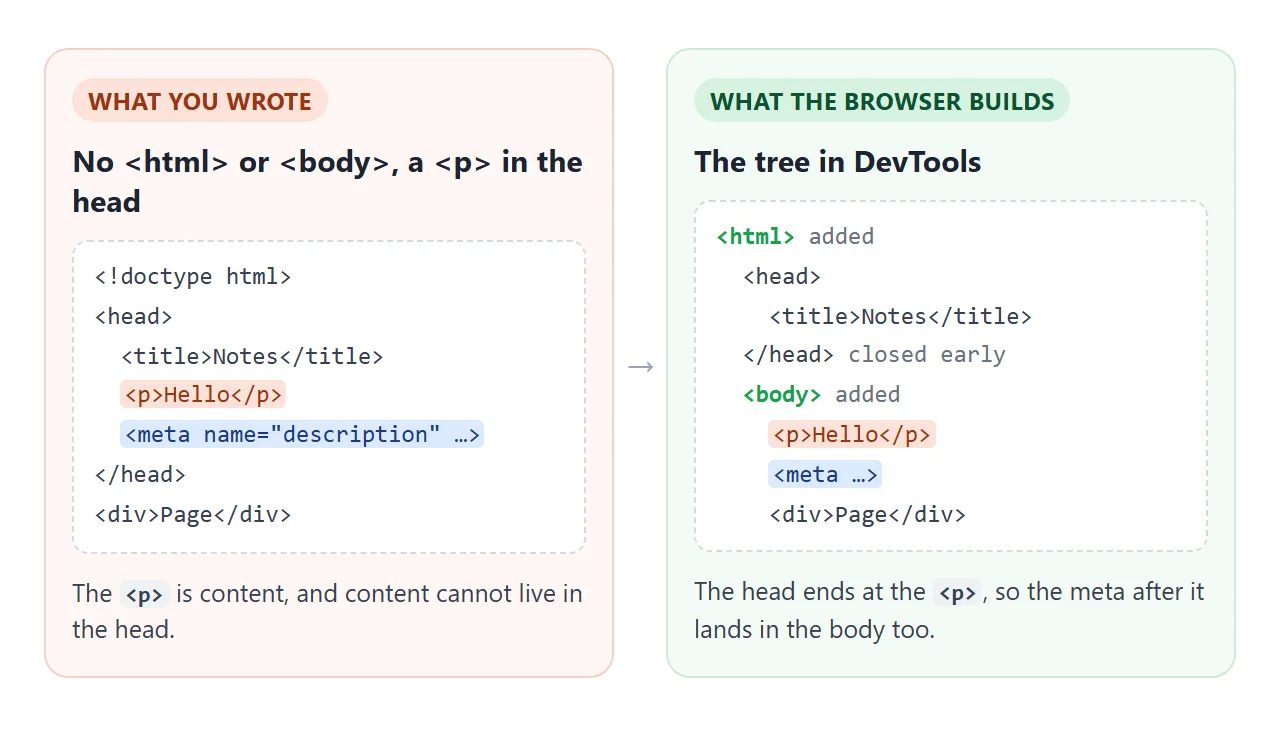
The same repair explains the stray paragraph. When the parser meets an element that belongs in the body, the head ends. Every element after that point, including meta tags and links you meant for the head, is placed in the body.
Open DevTools and look at the Elements panel to see the tree the browser built, not the one you wrote.
The DOCTYPE line above the head is a separate matter. It picks the rendering mode, and the head does not replace it.
A minimal complete head template
A finished head for a single page needs about ten lines. Fill in the form and copy the result.
<!doctype html>
<html lang="en">
<head>
<meta charset="utf-8">
<meta name="viewport" content="width=device-width, initial-scale=1">
<title>Head builder</title>
<style>
body { margin: 0; padding: 14px; font-family: system-ui, sans-serif; background: #f4f5f7; color: #1d2330; }
form { background: #fff; border-radius: 10px; padding: 12px; display: grid; gap: 10px; margin-bottom: 10px; }
label { display: grid; gap: 4px; font-size: 13px; font-weight: 600; }
input[type=text], textarea { font: inherit; font-size: 14px; padding: 7px 9px; border: 1px solid #c9ced8; border-radius: 7px; }
.row { display: flex; gap: 16px; flex-wrap: wrap; align-items: center; }
.row label { display: flex; align-items: center; gap: 8px; }
input[type=color] { width: 44px; height: 30px; border: 0; padding: 0; background: none; }
.count { font-weight: 400; color: #6b7280; }
.out { position: relative; }
pre { margin: 0; background: #1d2330; color: #e5e7eb; border-radius: 10px; padding: 12px; font: 12px/1.55 ui-monospace, Consolas, monospace; white-space: pre-wrap; overflow-wrap: anywhere; }
#copy { position: absolute; top: 8px; right: 8px; font: inherit; font-size: 13px; padding: 5px 10px; border: 0; border-radius: 6px; background: #fff; cursor: pointer; }
</style>
</head>
<body>
<form id="f">
<label>Title <input type="text" name="title" value="Q3 results, one page"></label>
<label>Description <span class="count" id="count"></span>
<textarea name="desc" rows="2">Revenue, costs and the three numbers to watch next quarter.</textarea></label>
<div class="row">
<label>Theme colour <input type="color" name="color" value="#2563eb"></label>
<label><input type="checkbox" name="viewport" checked> Viewport tag (for phones)</label>
</div>
</form>
<div class="out">
<pre id="out"></pre>
<button id="copy" type="button">Copy</button>
</div>
<script>
const form = document.getElementById('f');
const out = document.getElementById('out');
// Escape text so quotes and < in the title cannot break the HTML
const esc = (s) => s.replace(/&/g, '&').replace(/</g, '<').replace(/"/g, '"');
function build() {
const d = new FormData(form);
const title = esc(d.get('title').trim()), desc = esc(d.get('desc').trim());
document.getElementById('count').textContent = '(' + d.get('desc').trim().length + ' characters)';
const lines = [
'<head>',
' <meta charset="utf-8">',
d.get('viewport') ? ' <meta name="viewport" content="width=device-width, initial-scale=1">' : null,
' <title>' + title + '</title>',
' <meta name="description" content="' + desc + '">',
' <meta name="theme-color" content="' + d.get('color') + '">',
' <meta property="og:title" content="' + title + '">',
' <meta property="og:description" content="' + desc + '">',
' <link rel="icon" href="/favicon.ico">',
' <link rel="stylesheet" href="styles.css">',
' <script src="app.js" defer><\/script>',
'</head>',
];
out.textContent = lines.filter(Boolean).join('\n');
}
form.addEventListener('input', build);
form.addEventListener('submit', (e) => e.preventDefault()); // Enter does not reload
document.getElementById('copy').addEventListener('click', async (e) => {
try {
await navigator.clipboard.writeText(out.textContent);
e.target.textContent = 'Copied';
} catch {
getSelection().selectAllChildren(out); // clipboard blocked: select it for Ctrl+C
e.target.textContent = 'Selected';
}
setTimeout(() => (e.target.textContent = 'Copy'), 1500);
});
build();
</script>
</body>
</html>
The template it writes:
<!doctype html>
<html lang="en">
<head>
  <meta charset="utf-8">
  <meta name="viewport" content="width=device-width, initial-scale=1">
  <title>Q3 results, one page</title>
  <meta name="description" content="Revenue, costs and the three numbers to watch next quarter.">
  <meta name="theme-color" content="#2563eb">
  <meta property="og:title" content="Q3 results, one page">
  <meta property="og:description" content="Revenue, costs and the three numbers to watch next quarter.">
  <link rel="icon" href="/favicon.ico">
  <link rel="stylesheet" href="styles.css">
  <script src="app.js" defer></script>
</head>
<body>
  ...
</body>
</html>
For a page that has to work as one file, replace the stylesheet link with a <style> block. External stylesheets explains when a separate file is worth it. Writing the description well is its own topic, covered in meta description.
When it does not work
| What you see | Cause | Fix |
|---|---|---|
| The tab title does not change | Two <title> elements, and you edited the second |
Keep one title. Browsers use the first |
| The page shows briefly without styles | The stylesheet <link> is at the end of the body |
Move it into the head |
| é shows as é | No <meta charset>, and the server did not name the encoding either |
<meta charset="utf-8"> as the first line of the head |
| A phone shows a tiny desktop-width page | No viewport meta tag | Add the viewport meta tag |
| Text written in the head shows on the page | Visible elements cannot live in the head | Move them into the body |
| Meta tags stop working after a certain line | A body element in the head closed it early | Remove the stray element, then check the Elements panel |
| A script cannot find an element | It runs in the head before the body exists | Add defer, or move it to the end of the body |
Share it as a link
Head problems are easiest to judge in the real page: the title in the tab, the layout on a phone. A screenshot shows neither, and an .html attachment may open as plain code on a phone.
To send the working version, paste the page into a NOS document and choose Create share link. HTML to link walks through it.
The page renders as written and its scripts run, so the people you send it to can use the page themselves. If you change the code later, the same link shows the new version.